February 27th, 2026
Exceeding My Expectations: The HP ZBook Firefly 14 G8 Long-Term Review.
TL;DR: Good laptop, good price, perfect.
A Long-Term Review of My “New” Laptop.
I used to have a Lenovo ThinkPad X260 as my laptop last year. I chose that laptop off of the ThinkPad’s normal reputation of being the “perfect laptop”. It turns out, the X260 is great in some ways, but bad in others. The build quality of the device was not fantastic. I had the SD card slot break on me, right before a trip, and the control key on the keyboard seems to have broken in half on its own, despite remaining attached to the keyboard. I had accidentally busted a couple of the keys on the keyboard myself when experimenting with it as well. I decided that whatever money I’d saved up was better spent on getting something that would hopefully last me a while, so I went laptop hunting.
What I needed was pretty simple. I needed a laptop with a good screen, good keyboard, good mouse, good battery, and good build quality. For my $230 budget, this was a bit of a challenge, but isn’t too hard to find. Performance was also a factor, and I figured that if it beat my desktop’s Intel Core i7-930 that it’d be fine, though I expected whatever I would purchase to perform worse than it.
My Dad has a work-issued HP ZBook Firefly 15 G8, and since that laptop was on the more recent side, I decided to see if there was a 14-inch model. There was, and, to make the deal better, there were some that could fit in the budget. My Dad liked the way the device was, and said its keyboard and trackpad were good. I tried it myself and liked it. Although I made an effort to see about getting a Dell or anything but Lenovo or HP, I couldn’t find anything I liked. Begrudgingly, I bought the HP laptop, despite my intense dislike of their printers. The seller wanted $230 for the laptop, but with tax and shipping that would go over budget by quite a bit. I made an offer for $195, and the seller accepted nearly instantly. That concerned me, but the total came out to exactly $231.01. I have an extra $1.01, so that was not an issue. What was an issue was the fact I had to prod the seller to put the thing in the mail after a week of it not being shipped (and the claim it was shipped).
Thankfully, the laptop did actually arrive as described, complete with a Lenovo USB-C charger as a bonus (most laptops I saw came sans charger). I immediately powered the device on, and it did work, so I set to cleaning it up, which wasn’t a big deal other than some dust inside the laptop’s fan.
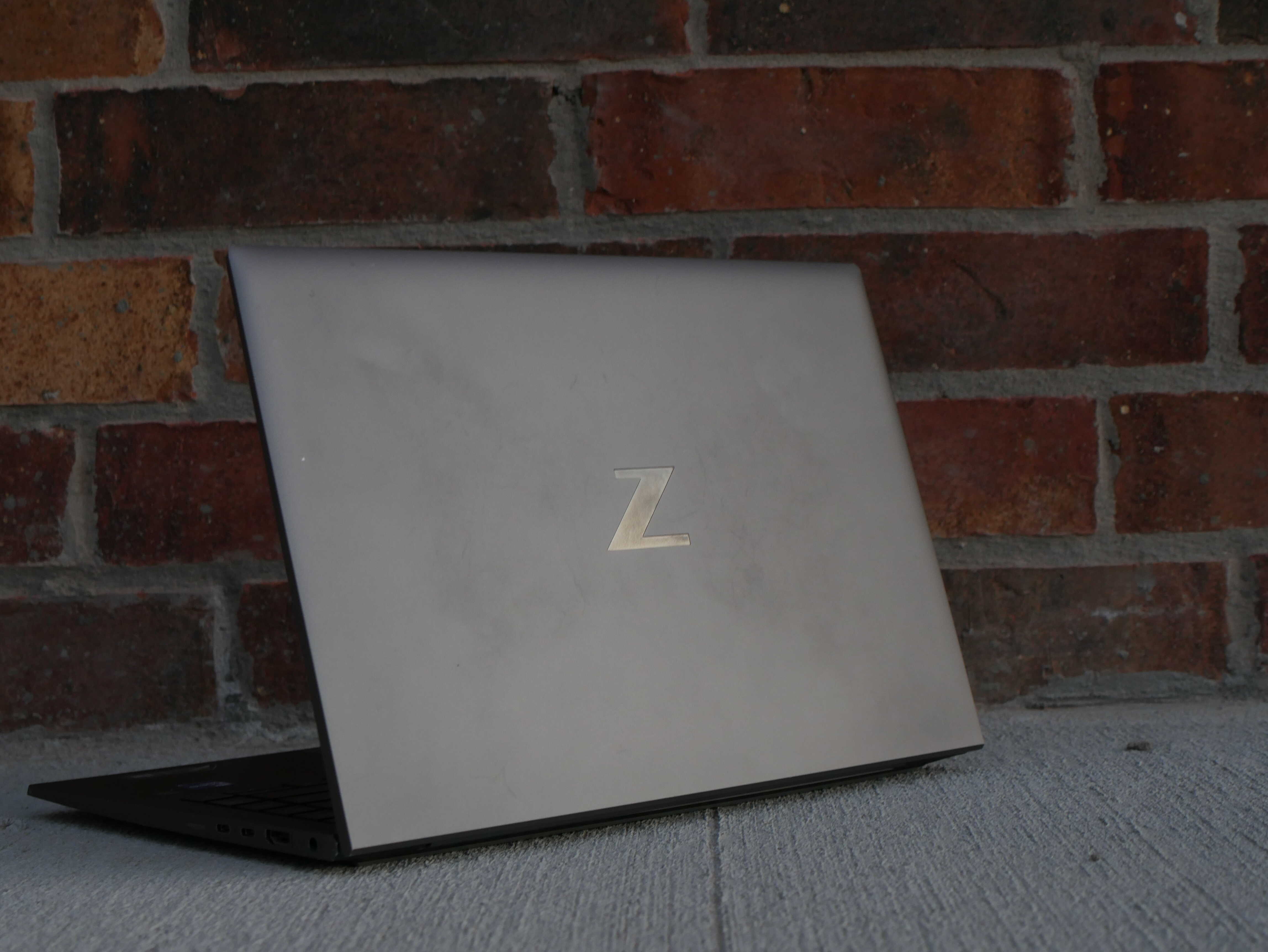
The design of this laptop is great. It looks and feels very nice. It’s made of an aluminum chassis, painted a greyish-silver color. The edges of the device are on the sharper side, though it’s not unpleasant to handle. The rear of the device has an interesting design on in, with the lid and the back hinge area having a rounded design, though instead of being exactly round, it is in more of a triangle of sorts. The front of the device is tapered, not as thin as my 11-inch MacBook Air, but it does make the laptop seem thinner. It also has rounded edges. The best way to describe it is with photos:
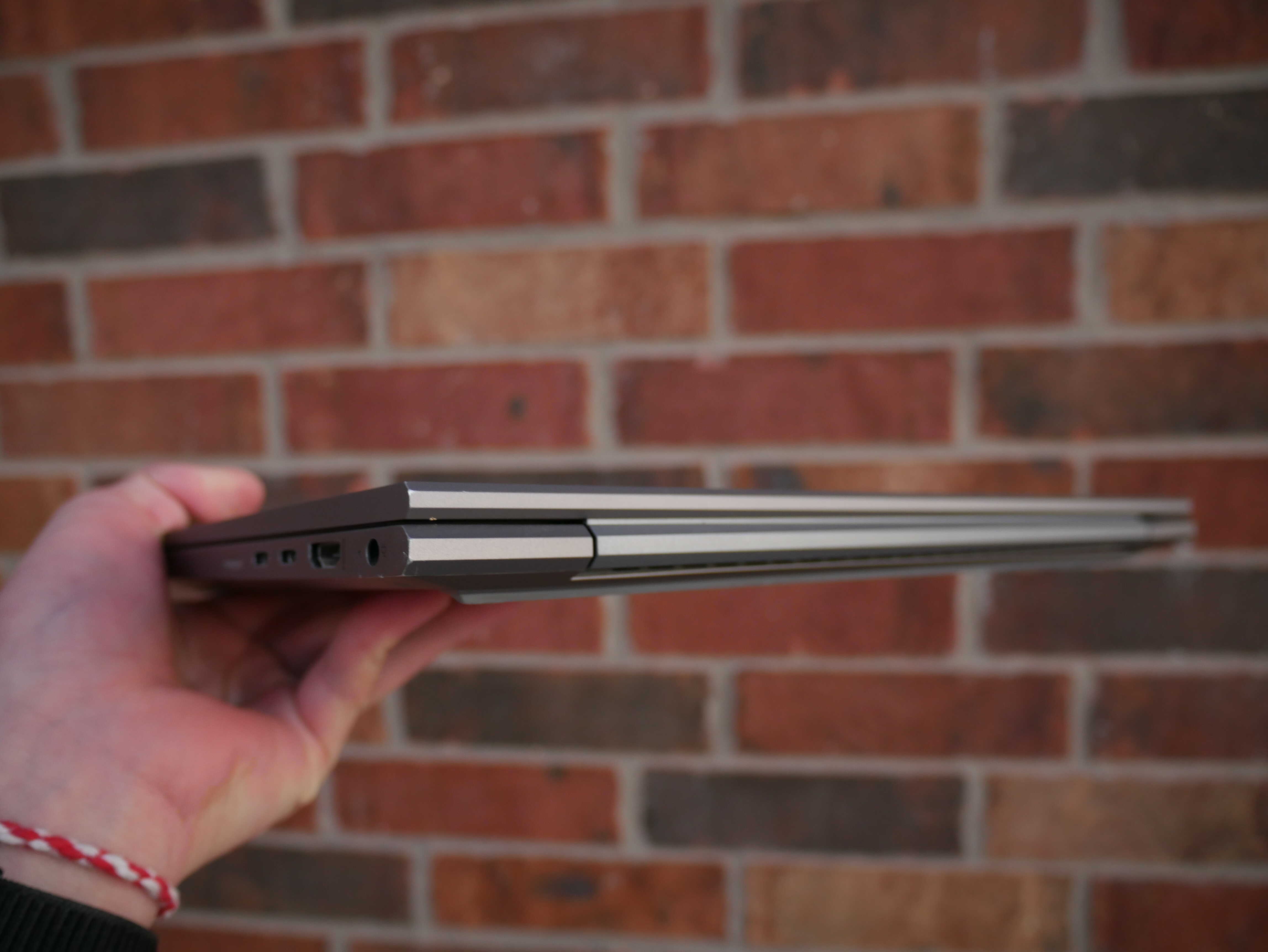
The hinge. Look at its design.
The lid of the ZBook, complete with big "Z" on it. Looks nicer than the HP logo.
Along the sides of the laptop are its fairly decent ports selection. On the left side are two USB-A ports, a headphone jack, and the two laptop things most normal home users never touch, the Kensington lock slot and the smart card reader. On the right, there are two Thunderbolt 4 ports, the barrel jack for charging the device, an HDMI port, and a SIM tray for cellular, if your device has it. It’s a shame there’s no SD card slot, though no SD card slot is better than only having microSD.
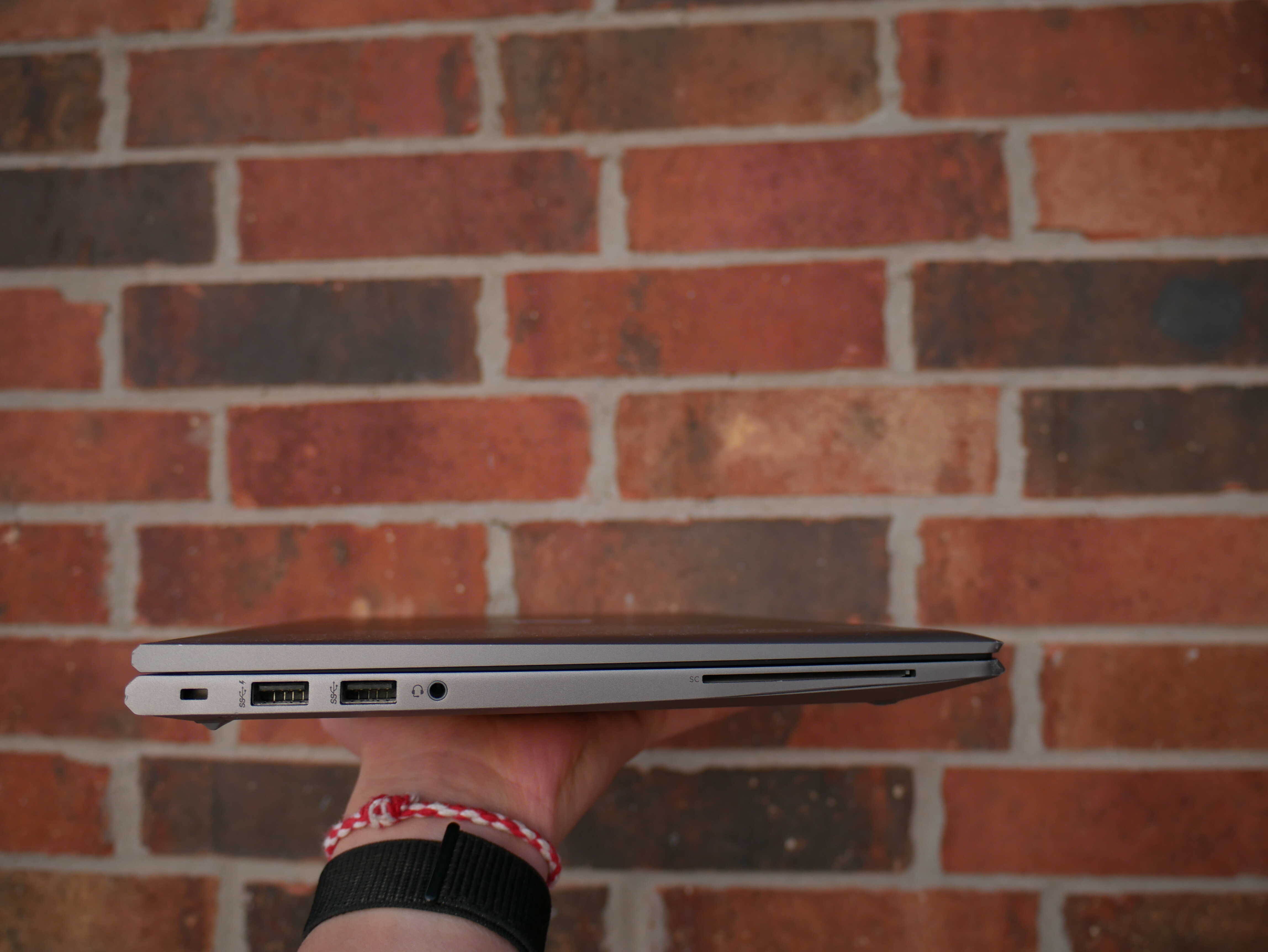
The ZBook's USB-A ports, headphone jack, smart card reader, and Kensington slot.
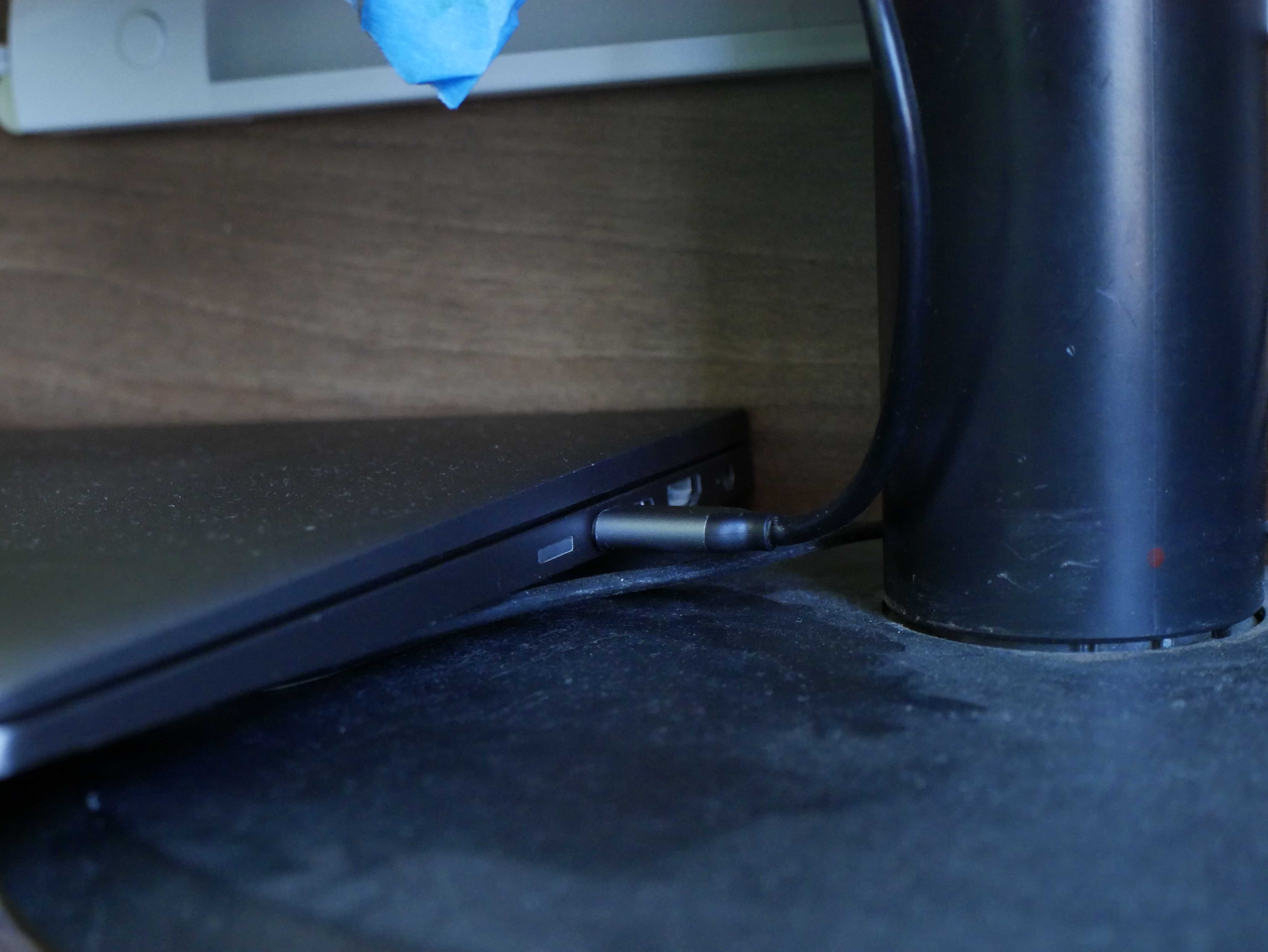
The ZBook connected to a USB-C dock
Opening the device reveals its input devices. The keyboard, with its built-in trackpoint, and the glass trackpad are set in the bottom of the device, as normal, with a speaker on either side of the keyboard, and a fingerprint sensor right beneath the bottom right arrow on the keyboard.
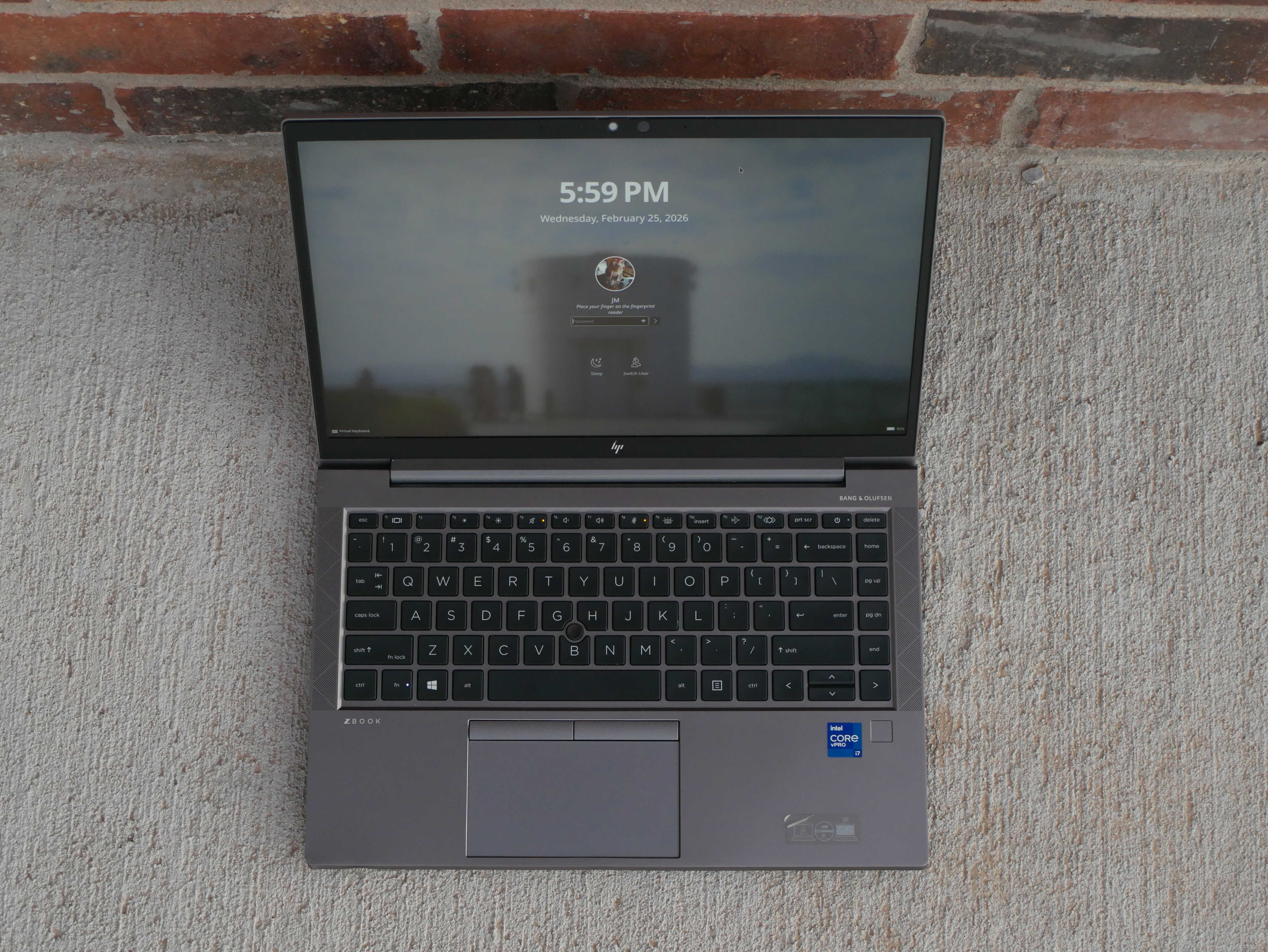
Top view of the ZBook with the lid open.
The keyboard is quite nice, and feels very responsive. Although older ThinkPad keyboard are nice and deep, this one seems to feel a bit nicer than newer ThinkPad keyboards. It’s also got a built-in trackpoint, though this one is particularly nasty, unlike the Lenovo ones.
I prefer a trackpad, and this trackpad doesn’t disappoint. It’s very smooth when dragging your finger around on it, and the click feels great. It’s deep, not too deep, and doesn’t require a lot of force to push the trackpad. I’d go as far as to say it’s better than any of the MacBook trackpads I’ve tried (though I’ve only tried ones on my MacBook Air and those unibody MacBook Pros). I do sometimes use the trackpoint buttons instead of pushing the trackpad down, and it’s quite convenient to mix the two together like that.
The display is very nice. It look bright, sharp, clean, and it’s everything I need in a laptop screen. I would have liked a 16:10 aspect ratio, or a 2K display, but at this price point that’s not happening, and I don’t need that. It’s a nice matte plastic screen, and doesn’t get tons of reflections on it. There is a thin plastic bezel surrounding the display, with a webcam and knockoff Face ID sensor in the top center. I don’t use either, as Linux doesn’t seem to care for the Face ID hardware, and the last time I really used a webcam was at the tail end of the COVID mania.
The hardware that power the laptop is also very nice. I bought it with an Intel Core i7-1185G7 CPU, Intel’s Intel-Grated Iris Xe GPU, 16GB of single-channel DDR4 RAM, and a 256GB NVMe SSD. This laptop can be had with more RAM (costs a lot more than what I had) and an NVIDIA GPU, but I don’t need either, leading to my decision to purchase this configuration.
I can actually upgrade the RAM and SSD on this laptop if I want to. I did put a 2TB NVMe Gen 4 SSD in it, though I haven’t upgraded to 32GB of RAM, and am still using the single channel of RAM this laptop came with. Since RAM prices have become unaffordable, I won’t be upgrading that anytime soon. 16GB is still enough.
My un-scientific CPU benchmarks returned results that proved my purchase worth it. The Tiger Lake CPU in this laptop really does roar. It manages to pull nearly double the performance of my i7-930, with a fraction of the power draw. See below for my HandBrake encoding tests:
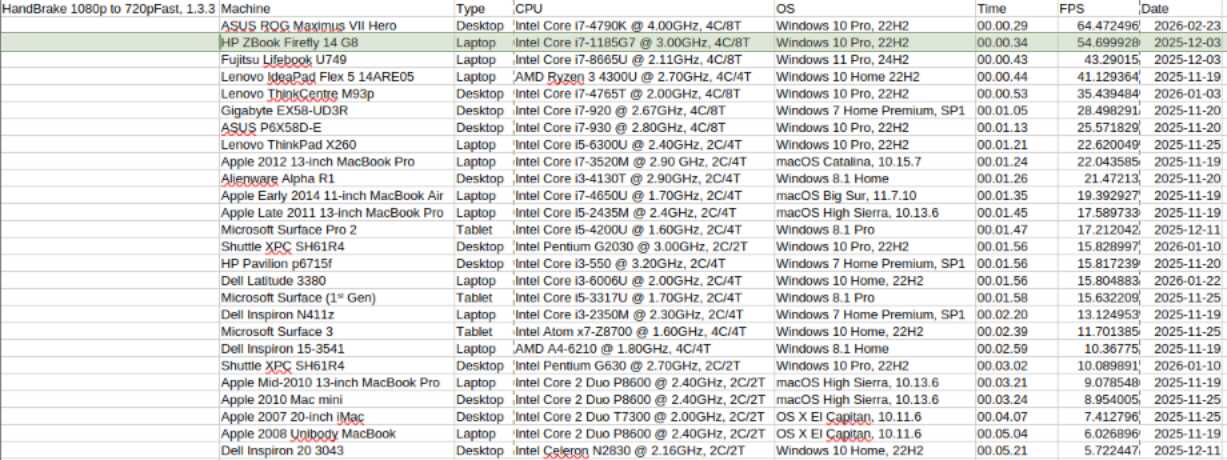
1080p HandBrake benchmark.
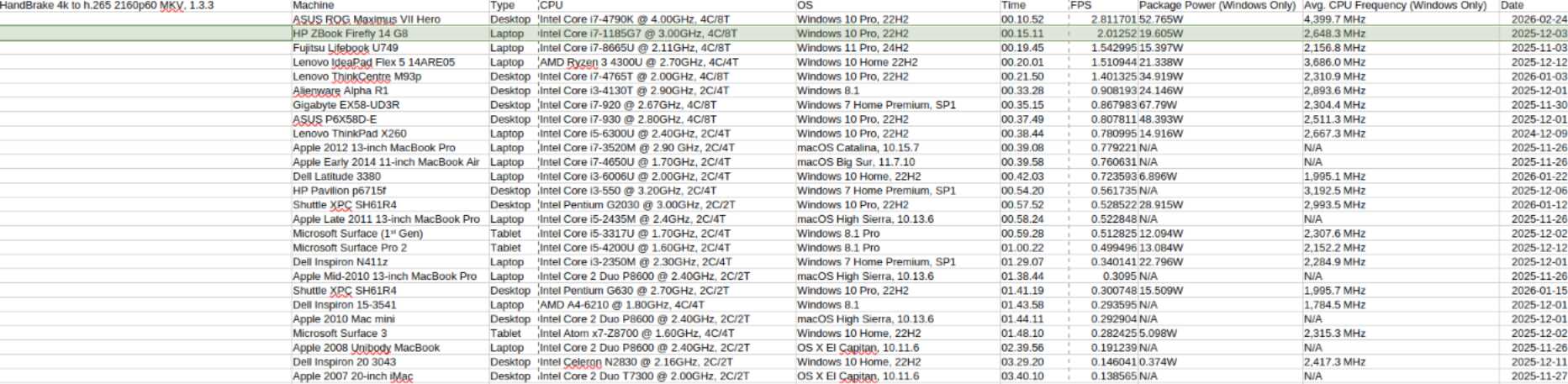
4K HandBrake benchmark, taken from HERE.
The one downside of this being a laptop is the aggressive thermal throttling under a heavy load. Usually the laptop will reach around 100C and throttle very fast after starting a Cinebench run, though ones the fans kick in, the laptop will cool down, turbo, and re-throttle.
Otherwise, the thermals are great. I rarely need the laptop’s full performance, and most of the time that I’m using this laptop, it’s silent. If I put my ear close to the bottom, I can hear a bit of a whine, but that’s about it. I do not like the fan noise it makes, as it is VERY loud when it kicks in.
GPU performance is obviously not mega super duper great, as Unigine Valley shows. This doesn’t bother me that much, as I don’t game. It also can decode H265 videos, which is very nice to have:
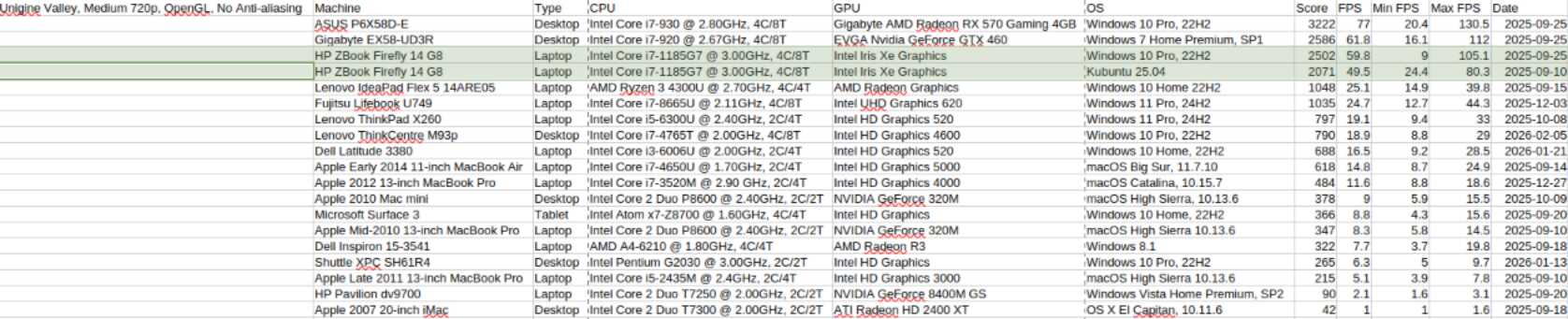
Unigine Valley scores. I run it at medium, 720p, OpenGL, and no anti-aliasing. I also ran it on both Linux and Windows becuase I can.
And, of course, battery life. 1080p60 AV1 videos playing through VLC drain the laptop to around 60% in a couple hours. I’m glad it can last that long, as my old ThinkPad would be dead by that point.
I use my laptop as my primary computer. Desktops are nice, but despite using them for a while, I keep coming back to laptops. It’s why I purchased this one. Having all my work on one device that can turn into a thing I can carry around with me, or sit in a different chair, is quite nice. And all I have to do to transform the thing is connect it to a dock. My old ThinkPad had a giant chunky docking station that took up a good chunk of desk space. It was nice to be able to plop the laptop on it, but that was about it. This laptop has a far more elegant and universal solution: USB-C.
The dock I have is a cheap USB-C dock that gave my Dad issues. It would black out on him and he’d have to reconnect his laptop while trying to work. The dock has two HDMI ports on it, which works out very well for me, as it allows me to use my previous dual-display setup. All I have to do is connect the laptop to the display, and in a few seconds, it will transfer my windows over to the external screens, and connect all of my external peripherals. It’s great, and weirdly enough the black-out issues are less pronounced, as the screen will only go black if in use for a while.
I use Linux on all of my primary devices. Android on my phone, and Kubuntu on my laptop. KDE provides a very feature-rich desktop environment, and gives me a great-looking system with customization that most people aren’t going to use. I’ve had my fair share of issues with it. The first is with its scaling. I set it to scale to 1440p on my external displays to squish more content there. A few updates later, Brave browser didn’t want to work right with the scaling, and despite upgrading from 25.04 to 25.10 recently, the issue is not resolved. I switched to Firefox, an equally not-great browser.
Another issue is with the dock. I have an undocking ritual for this laptop. If the laptop is in sleep mode, you can dock it safely without crashing it. However, disconnecting the dock while it is sleeping leaves the laptop in a coma, which requires you to force the laptop off, and back on again, causing you to lose your work. I learned that the hard way. Instead, I have to open the lid of the device, unlock it, lest KDE glitch, and THEN undock it. If you have Firefox open, Firefox will crash into flames, and you have to start the browser again. I’ve learned to live with it, but it’s not for everyone.
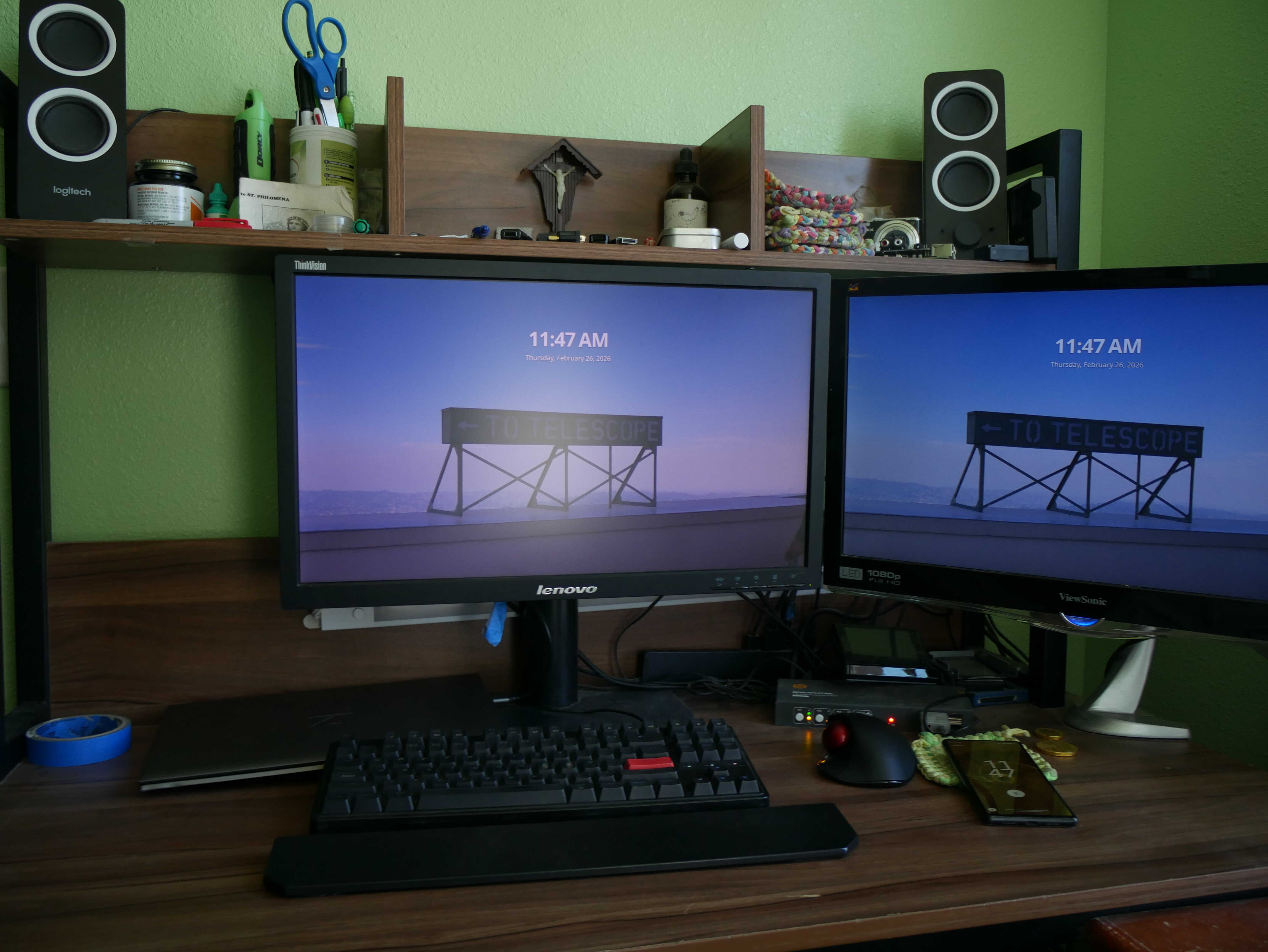
My desk. See how the laptop is out of the way?
The final issue is the fingerprint sensor. I really do like having it there. It makes using the laptop so much easier. KDE’s implementation, however, is poor. You can unlock the device after first login with it, though you have to enable it through the command line when I installed Kubuntu. I ended up following some guide off the internet, and that got it to work on the logon screen. I have to press enter, then tap my finger to get the device to unlock. The big issue is when the terminal needs a password, and I have the laptop docked. I have to wait for the sudo prompt to time out on asking me for a fingerprint to type my password in. Oh, and sudo makes you do it TWICE. Yah. Fun.
The build quality of the device could be better too. I do really like the metal build over the plastic of the ThinkPad, but it dings easily. I have a noticeable dent on the bottom left edge of the device from it being sent in a nice bag and being set down slightly not gently. Oh well. That was my fault. What wasn’t is the proof that HP, does, in fact, not stand for Hewlett Packard, but for Hinge Problems. One day I picked the laptop up, and the lid was sliding a bit more than ever before. I opened the device and screwed the hinges in tighter, and although that improved it, it still shifts a bit. Not a fan of that. It has held up for a lot of the wear and tear I put on it, so I hope it’ll hold up for a few years more.
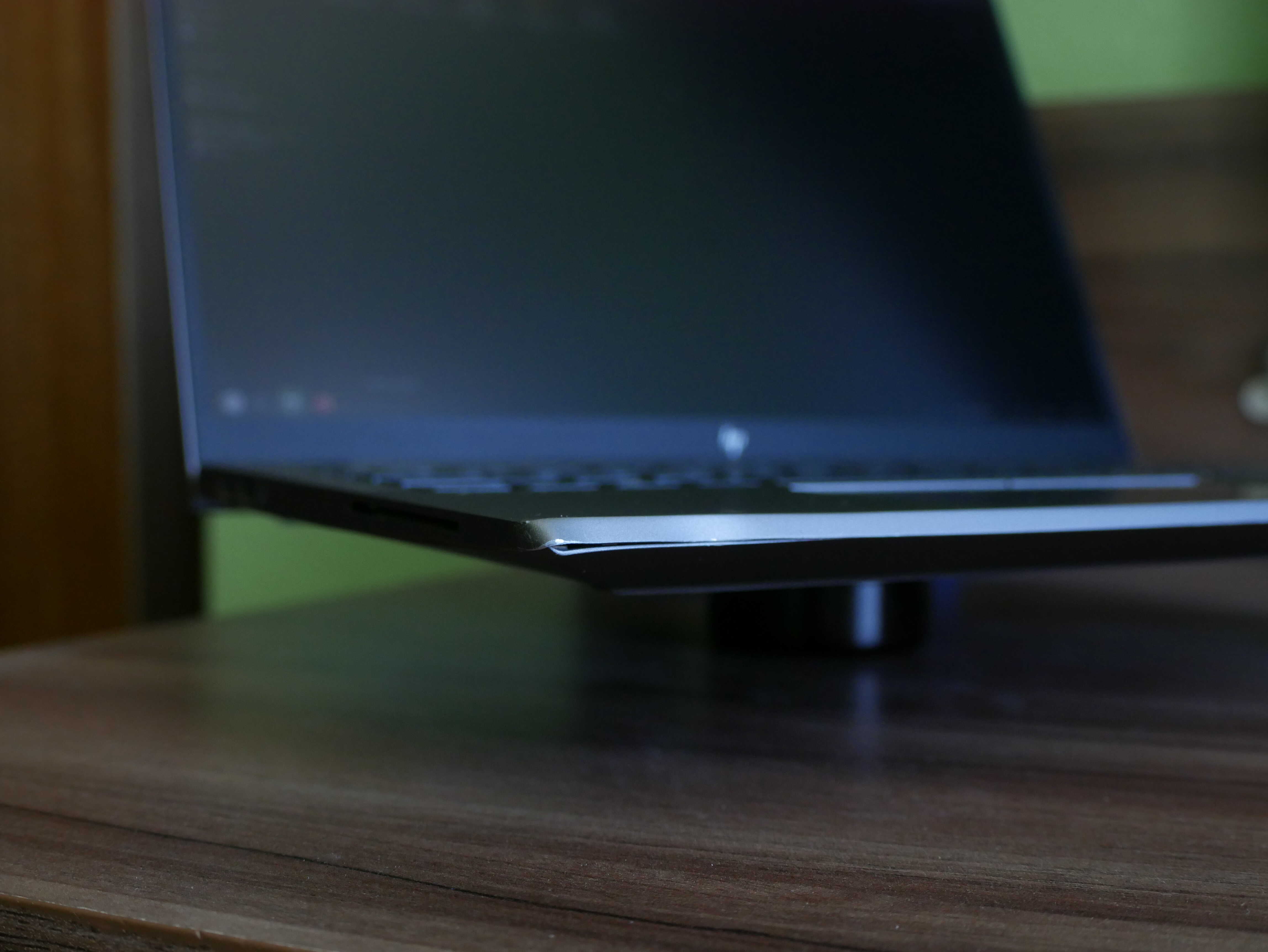
The dent on the ZBook. The smart card slot is a weak point on this thing.
And since this is a laptop, portability is key here. The laptop is hefty, but not too heavy and not too light. Its metal build means it’ll withstand being banged around in my bag. Overall, portability is great.
And, since I can invent things, my un-patented Chonk-O-Meter can give you an idea as to how chonky this laptop is. Look at the photo. It’s chokier than a MacBook Air, but thinner than the ThinkPad X260 featured in the Chonk-O-Meter. Also, the ThinkPad has a battery that makes it a bit chonkier, but I’m not counting that.
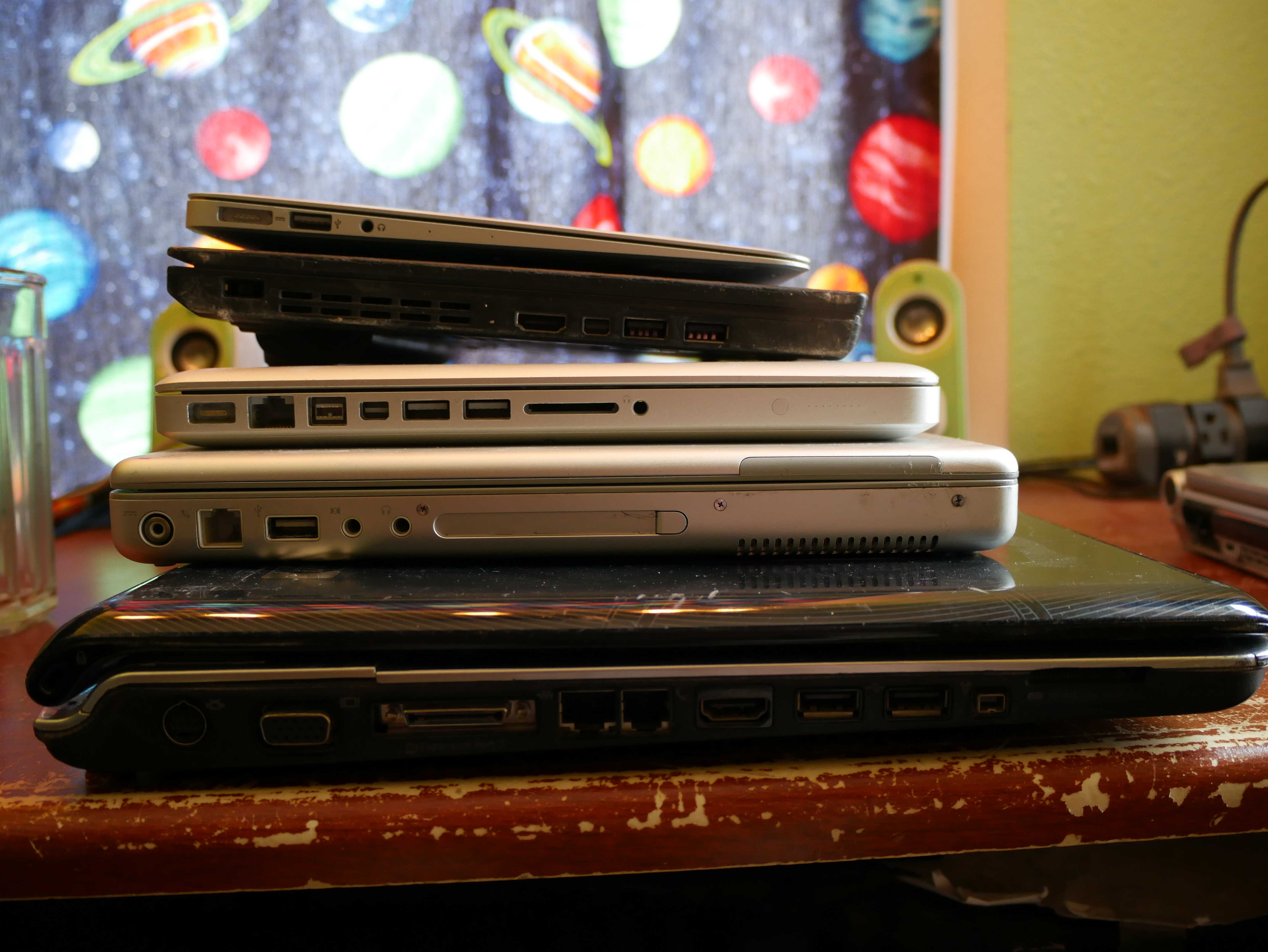
The Chonk-O-Meter, featuring the HP Pavilion dv9700, the 15-inch aluminum PowerBook G4, the 2010 Unibody 13-inch MacBook Pro, the ThinkPad X260, and a 11-inch 2014 MacBook Air.
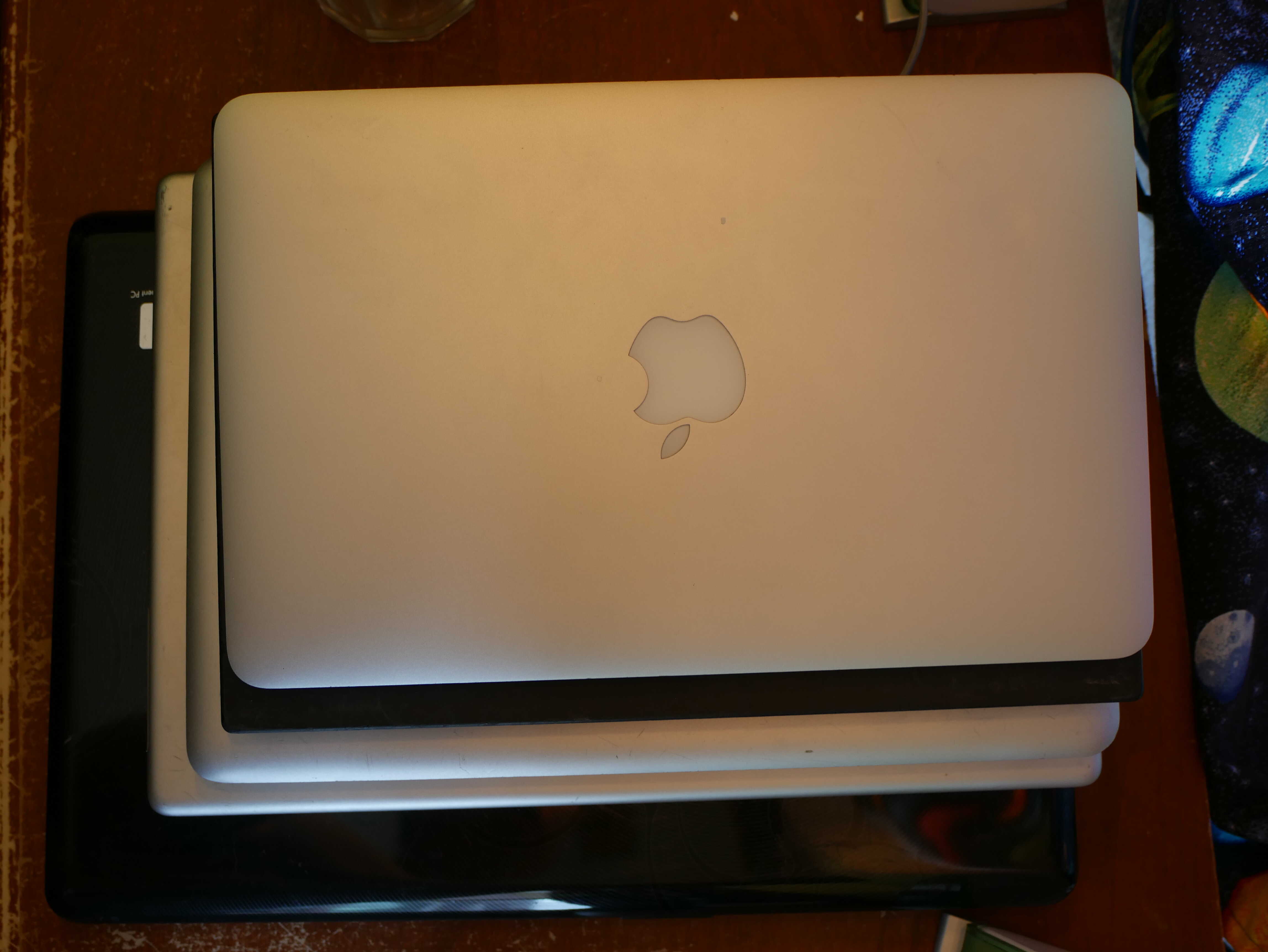
Top view of the Chonk-O-Meter.
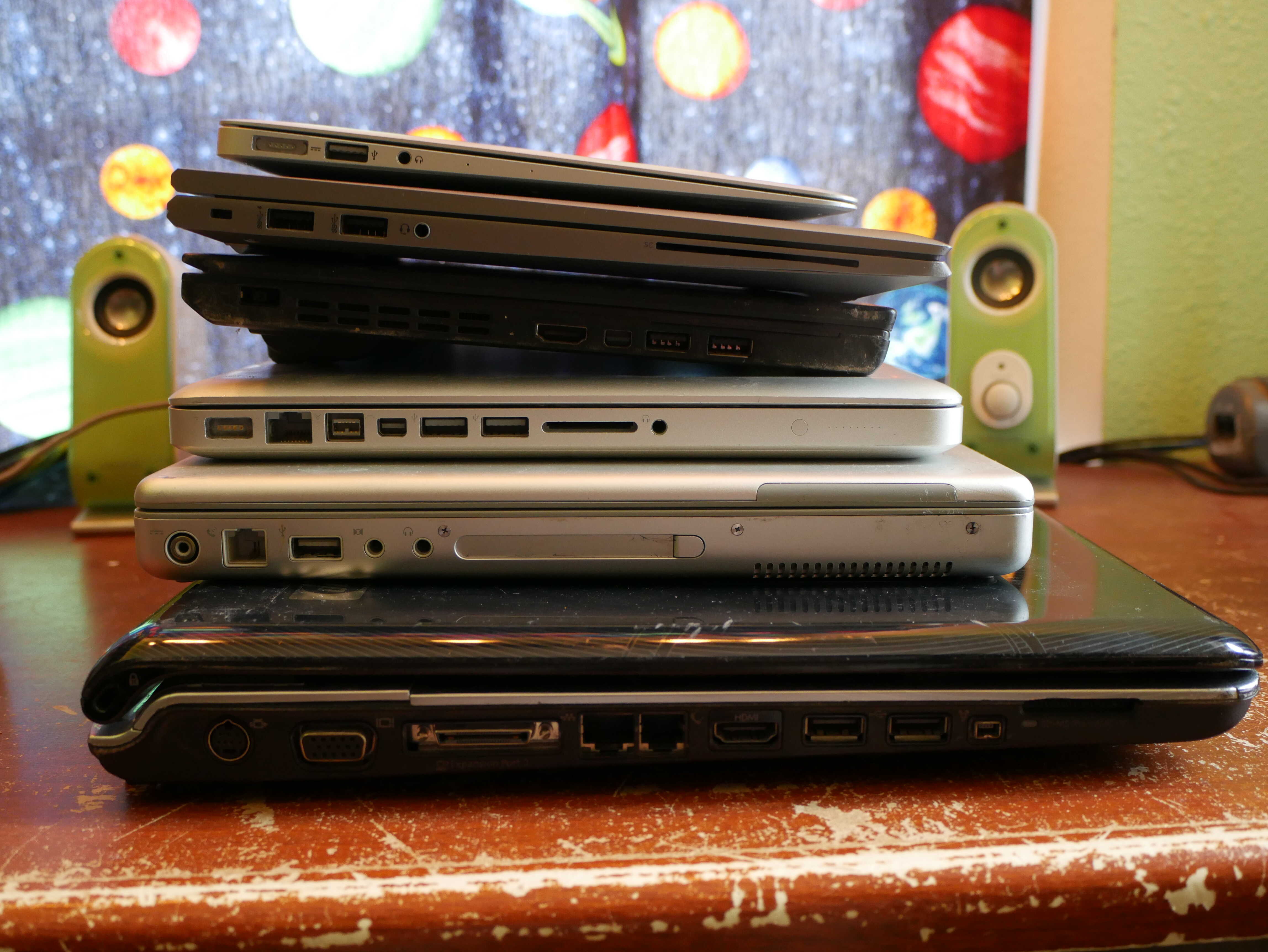
The Chonk-O-Meter with the ZBook inserted in it.
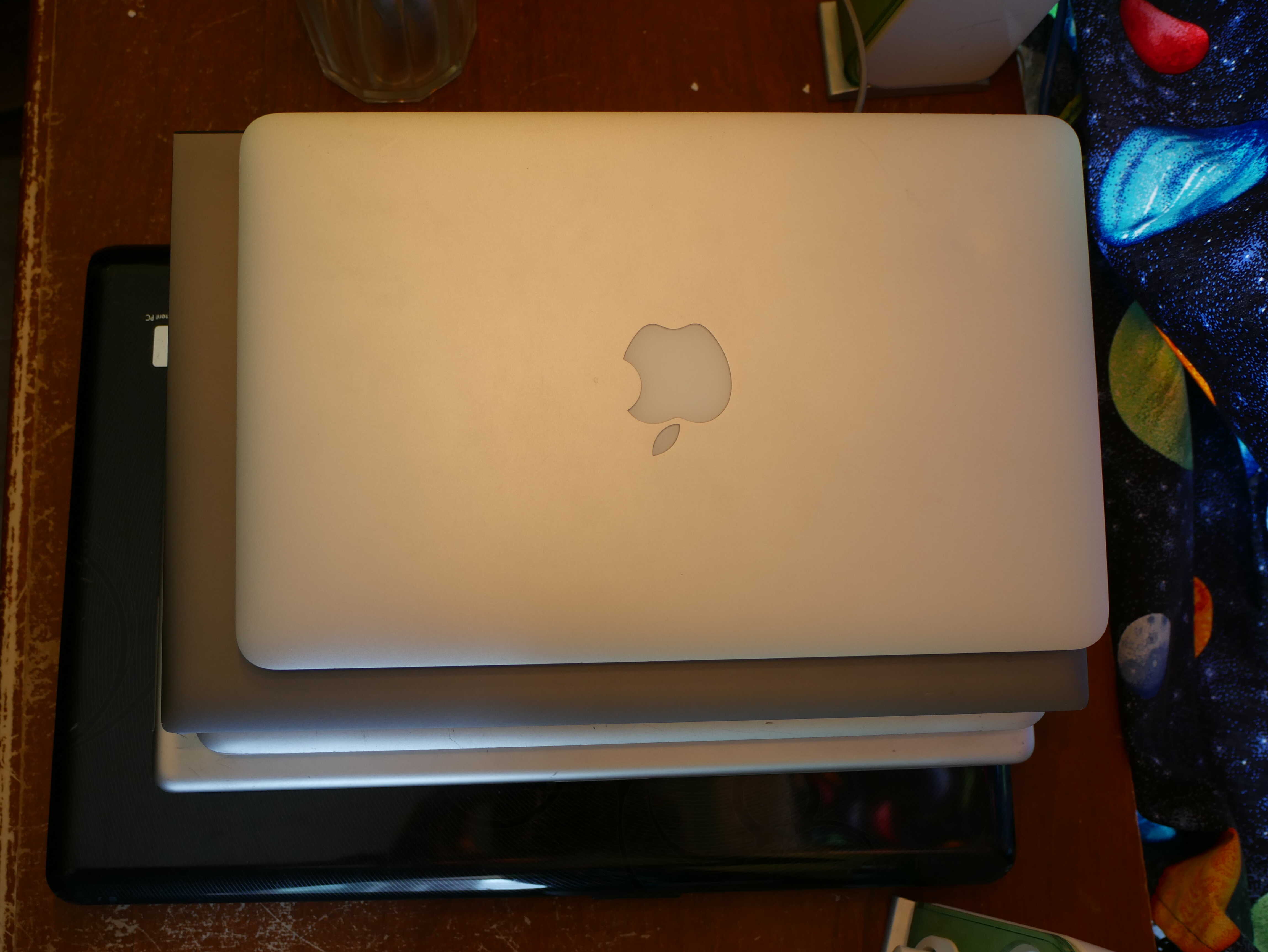
The Chonk-O-Meter with the ZBook in it, top view.
Price-wise, this laptop is excellent. I paid $195 + tax and shipping for the device, coming to a total of $231.01. Most sellers I see are selling these things for more than that, and often in worse shape and without a charger. Always haggle them down to below $200. Mine also has the i7-1185G7, the best CPU this laptop can come with, and I strongly recommend ensuring you grab one with that, and 16GB of RAM.
Overall, I’m very happy with this laptop. It had everything I needed. Its keyboard, trackpad, and display are excellent, and the Tiger Lake CPU in the device manages to pull ahead of just about every device I own, despite its small size and affordable price. Its excellent design makes for a device I can be happy to have sitting on my desk, and it can satisfy pretty much all of my computing needs from the comfort of a rocking chair. Despite my doubts about it, due to its manufacturer’s usual poor build quality, this laptop has exceeded my expectations and proven itself a worthy device in nearly every way.
Non-Laptop-Review-Stuff.
After all of that laptop review stuff, how about some other stuff that I’m excited about?
The first is LineageOS. Android 16 QPR2 FINALLY got the LineageOS treatment, and it’s great! I had my doubts going into it, but for the most part I’m very happy with it. LineageOS runs very well on my phone, and the QPR2 update feels like a breath of fresh air. The transparency, the animations, the overall design, nearly everything feels great. Except the volume changer. I bragged about it being better than what GrapheneOS and stock Android had in my last review, and the changes in QPR2 were big enough to the point the nice small volume changer is gone.
There are still some bugs. LineageOS’ custom font thingy is no longer available, though I can tell my phone has retained the Rubik font I set in the past in some areas in the system. Also gone is the ability to change system icons, though I remember that not working well anyways. I would like to see Google Sans Flex in use, but I suppose that’ll be added at a later date. Otherwise, Android remains functionally the same as it did before.
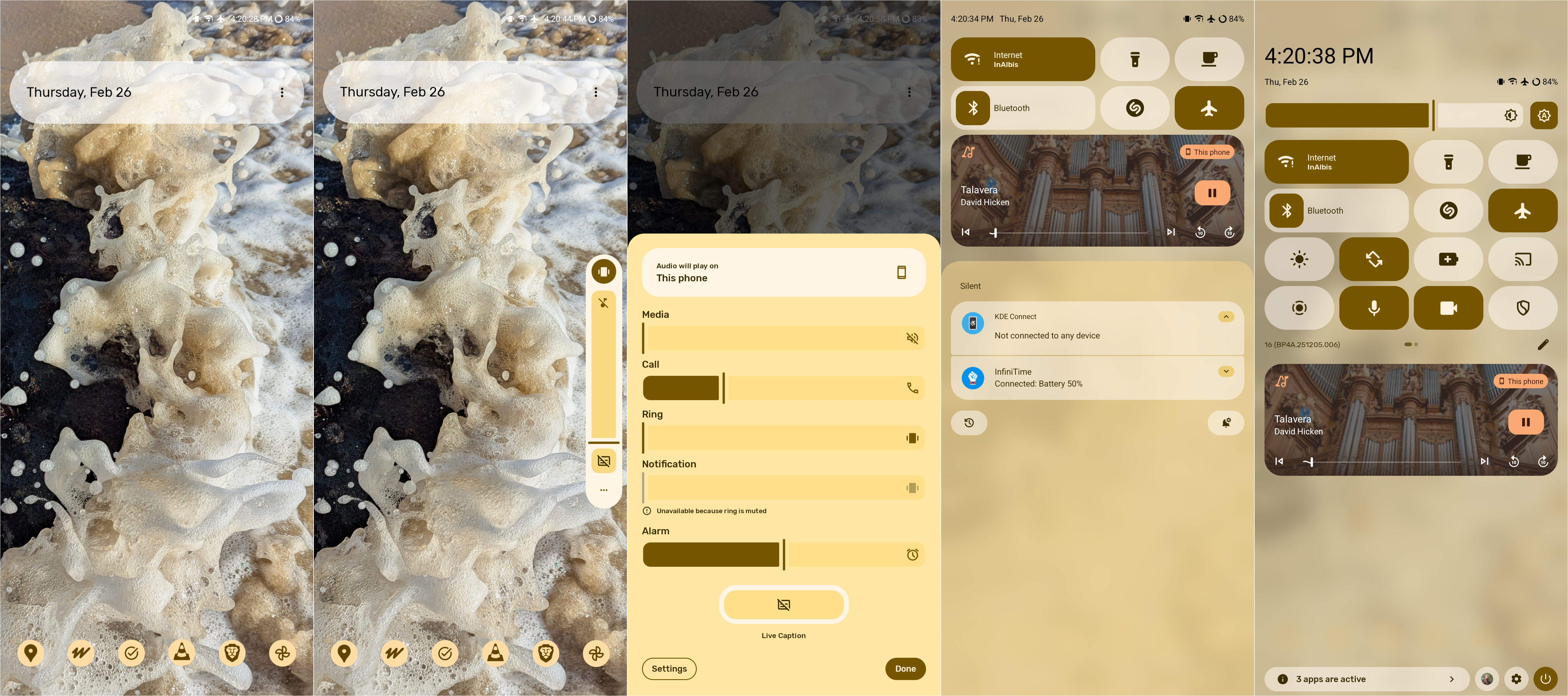
Material 3 Expressive on LineageOS 23.2 (Android 16 QPR2). This is the home screen, volume thing I complain about, and the notification center.
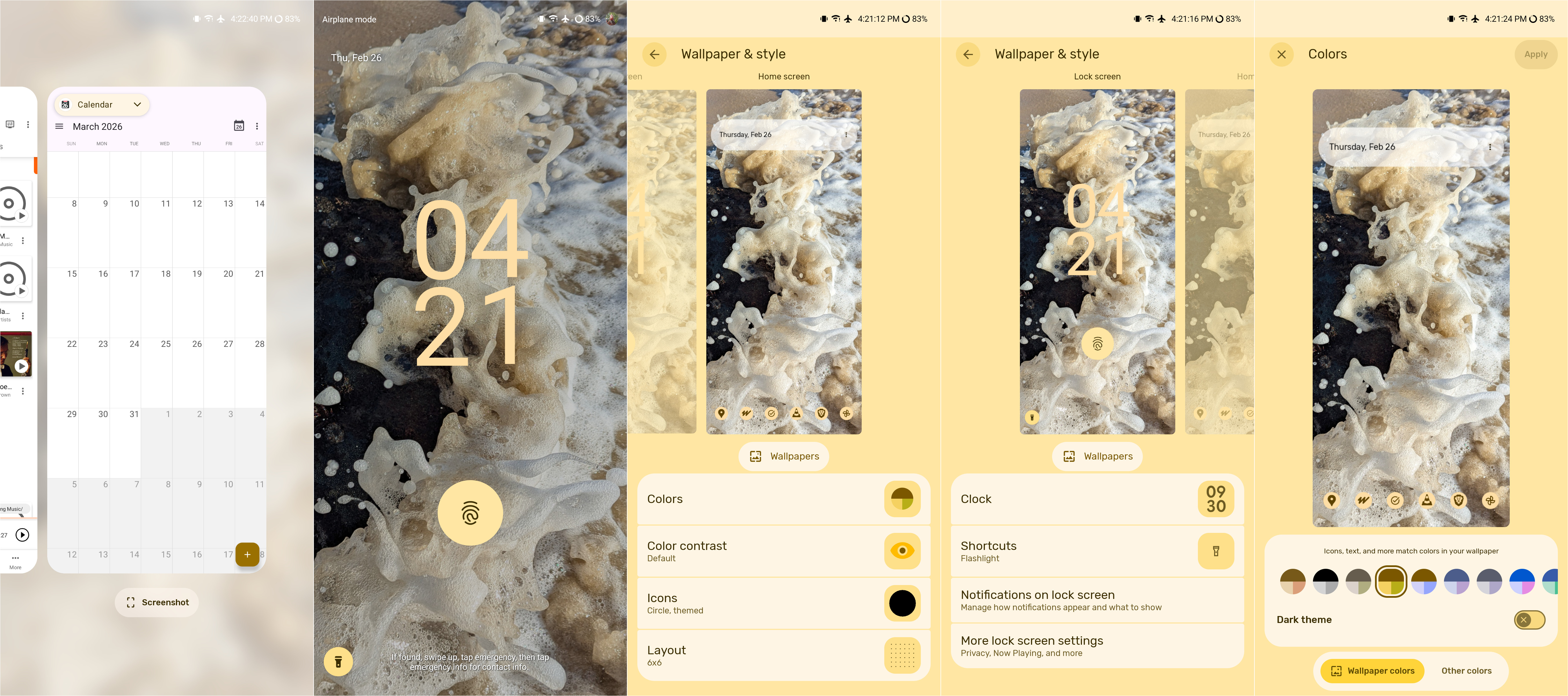
Same as above, except this is the app switcher, lock screen, and a couple of the screens in the Wallpaper and Styles app.
Second of all is another motherboard, that, thanks to someone at church, I now have. It’s a pretty nice ASUS motherboard, with more bells and whistles than I could have dreamed of. It’s even got a tiny little error code display! What more could I want? It’s deserving of its own post, as it was a bit of an adventure to get it to work, but after that I now have the most powerful PC I’ve ever owned. Oh, and its i7-4790K CPU can be overclocked. I suppose I’ll have to try that at some point.
Third of all is, weirdly enough, Google Photos. Once again proving my point that you don’t need to send your photos to the cloud, Google Photos can now make stickers, completely on-device! All you have to do is press-and-hold the subject in your image, tap “copy sticker”, and BAM! New sticker! That is what machine learning should be used for. Fun, useful, and non-destructive things like that.

A sticker of Dominica.
Somewhat away from the world of tech are my chickens. They seem to be fairly happy. Felicitas, Agathae, and Josephine have laid their first egg of the year. An unfortunate side effect seems to be that they act meaner to each other. Otherwise, everything’s just fine with them.

Empress Josephine in a dust bath.