July 31st, 2026
Installing Trinity Desktop Environment on a Pentium 4.
Using the Future with the Past on the Past.
Installing Trinity Desktop Environment.
A while back, I used to spend a lot of time messing around with various distros on my computers. It’s how I learned to use Linux. And, since I have more computers than I did 8 years ago, I now have a lot more experiments that I can run on a much wider variety of hardware.
I had the idea a couple weeks ago to try Trinity Desktop Environment again. Since very few distros ship with it, I would have to install it all on my own. I decided to try it on a Pentium 4 machine that I have, the Dell Optiplex 210L (link HERE). I initially chose Debian 13 as a base. Debian was being weird, and didn’t want to use the full resolution (1280x1024) of my monitor, so I went to Debian 12. It too had the same issue, but I decided to ignore it and plow through.
When installing Debian, ALWAYS ensure the device has an internet connection. This will ensure you have less post-setup headaches. After the install, log in as root. On Debian 12, at least, I had to tell it to not use the cdrom for apt, the package manager. This can be done with the command “nano /etc/apt/sources.list” and then adding a “#” in front of any of the lines that say “deb cdrom”. Do that, then run “apt-get update”. From there, you will want to install sudo. That can be done with “apt-get install sudo”. From there, restart your machine. Then, log in as root again, and run the command “sudo adduser
Trinity has a guide on their wiki for Debian (link HERE). Follow the 14.1.x install directions for Debian. The install instructions are fairly straight-forward. I had no trouble following them. Once it’s installed, all you need to do is reboot, and you will be greeted with the login screen. Log in, complete the setup wizard, and you will have TDE ready to go.
From there, the only things you will need to figure out are what non-TDE applications you want. The only thing that installing the full TDE package gives you is most of the TDE stuff you want. It won’t give you the fancy things like Firefox or LibreOffice. I installed Firefox and VLC on mine. Htop is great for a low-resource system monitor in your terminal.
I also had to coax it into using the full resolution of my monitor. I had to go a bit out of the way to do it. It did not like the KVM switch I used, so I abandoned using it. Then, I went to the Control Center>System Administration>Monitor & Display>Administrator Mode>Resolution and Layout, and dragged it up to max. That seemed to fix it.
Using TDE.
Using TDE on this old machine was a blast. I had previously installed Linux Mint with Cinnamon on this machine. Unfortunately, Cinnamon is not the biggest fan of Pentium 4 processors. It works, but it wasn’t super duper snappy. Debian with TDE, on the other hand, was very snappy. Applications launched fast. It took about two seconds to launch the control center. Mind you, this is with a spinning 80GB hard drive from whatever bargain basement Dell bought that from. On a Pentium 4.
In fact, despite the machine having three whole gigabytes of RAM, TDE used LESS than 512MB most of the time. In fact, with a bunch of the native TDE apps open, it was only using about 332MB of RAM. Opening Firefox did use a bit more RAM. On the TrueNAS login screen, it was using nearly a gigabyte. With YouTube, it was more like 1.5GB. Closing most of the junk dropped it down to 279MB of RAM. TDE is insanely light.
TDE’s lightness is no surprise to me. TDE is a continuation of KDE 3. Since it is developed with modern Linux in mind, unlike ancient builds of KDE 3, it has no issues running on a modern system, such as Debian 12. The machine I am running TDE on is from about 2006, when KDE 3 was still a thing, as KDE 4 launched two years later. This means that, despite the modern Debian base, I can still run an ancient, period-accurate desktop environment on my machine. This is why TDE works so well. KDE 3 was made with this kind of “junk-heap” hardware in mind. Due to its lineage, TDE happens to wind up carrying this trait onwards into the 2020s.
TDE also has a lot more to it than just the base desktop. There is a truly insane amount of maintained apps, ported from KDE 3, that still run on modern Linux. Yes, in fact. Ancient apps from the early 21st century, that can actually run on modern Linux with no issues. Konqueror is one such example. It is essentially a file manager and web browser rolled into one. It’s a leftover from that era, and this particular version still works. It’s not good for browsing, but it is for being a file manager. Since these apps still exist, TDE manages to keep its original charm without many compromises.
In conclusion, this has been a very fun project for me, and one that I recommend, especially if you want a fun Linux project that you can do. It, in essence, is a way to get the feeling of using an older Linux disto, without the compromises that come with using an older Linux distribution.
I’ve included some photos here of it. Enjoy!
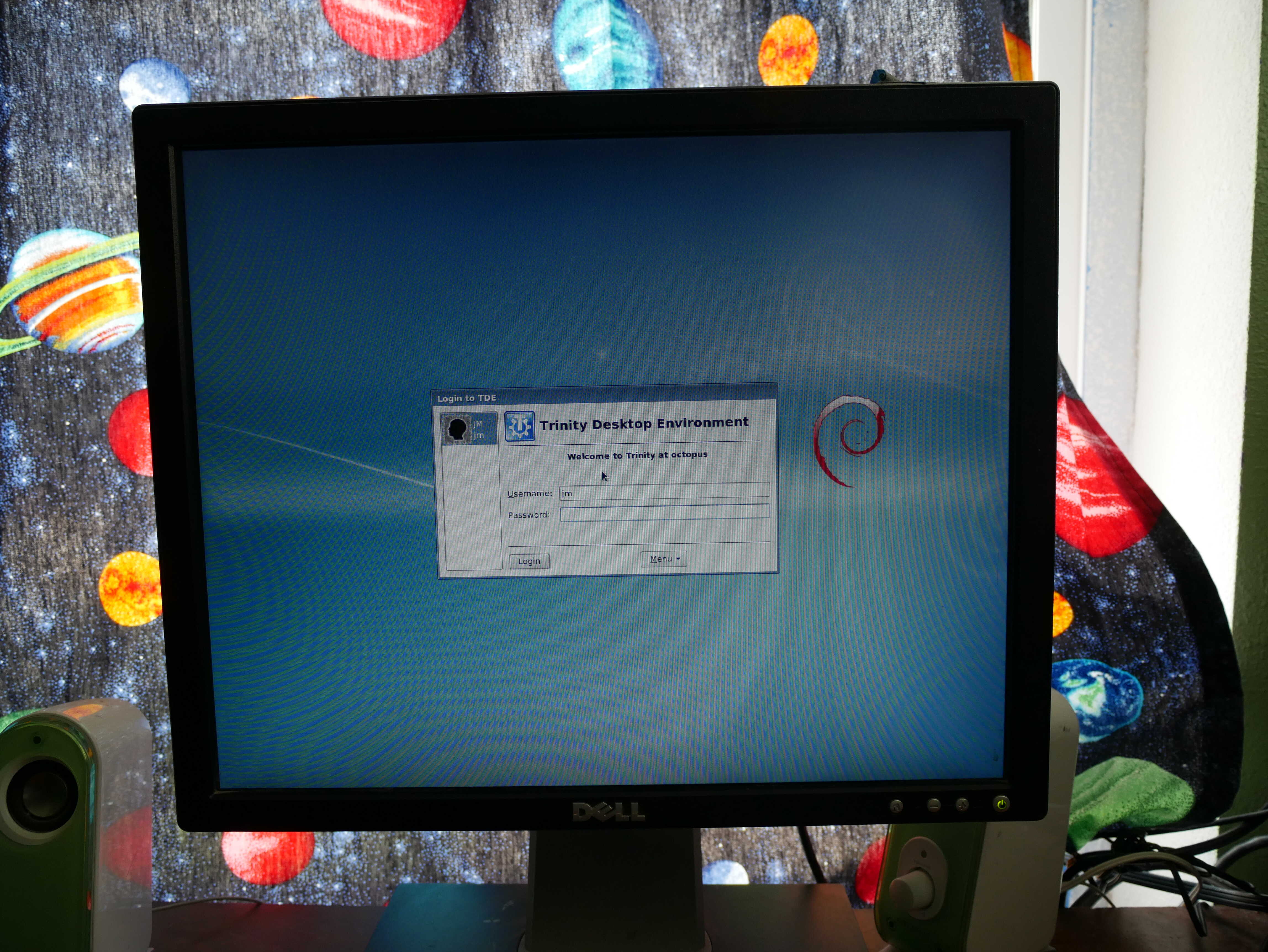
The TDE login screen.
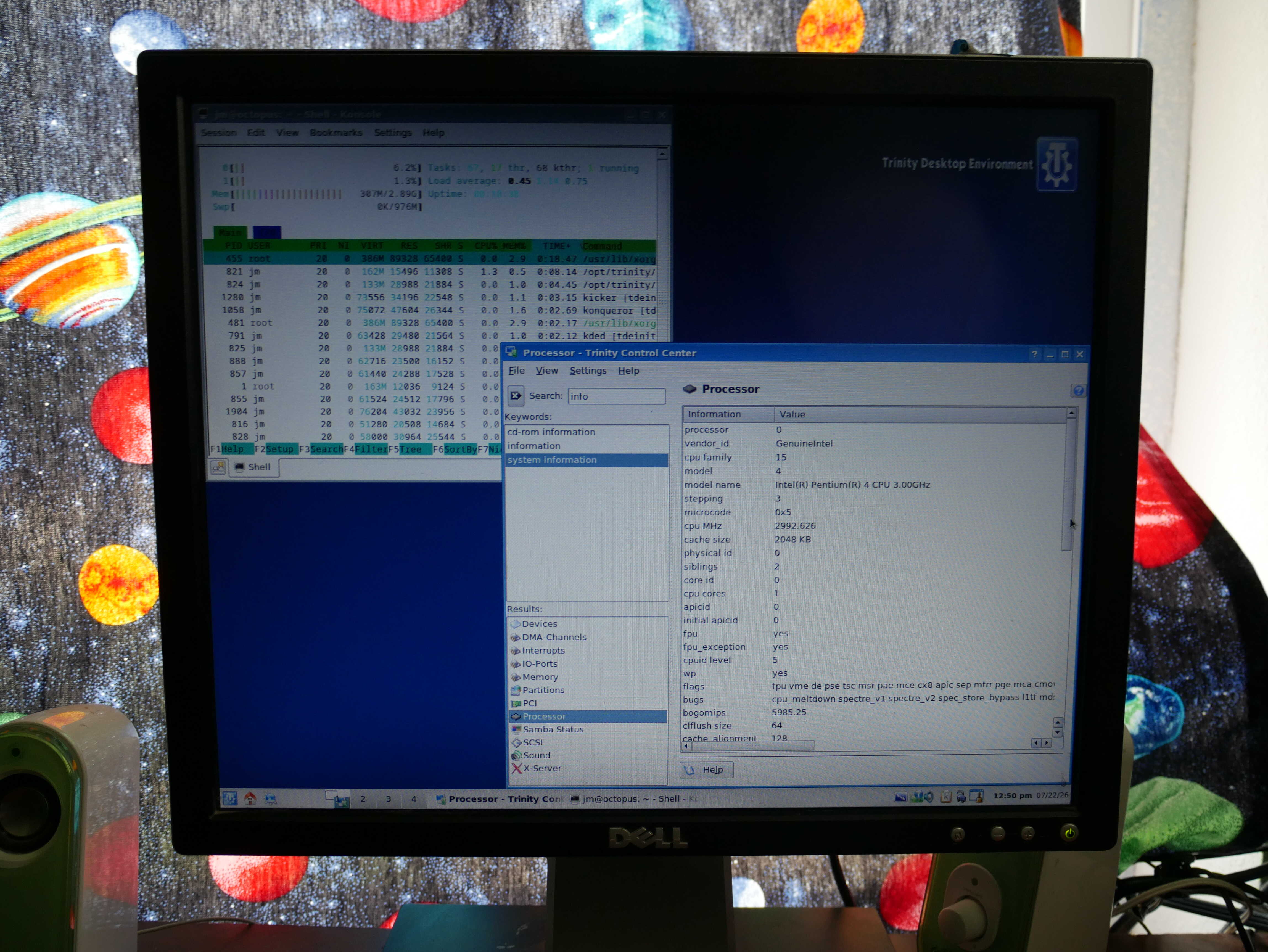
Processor information with htop open on TDE.
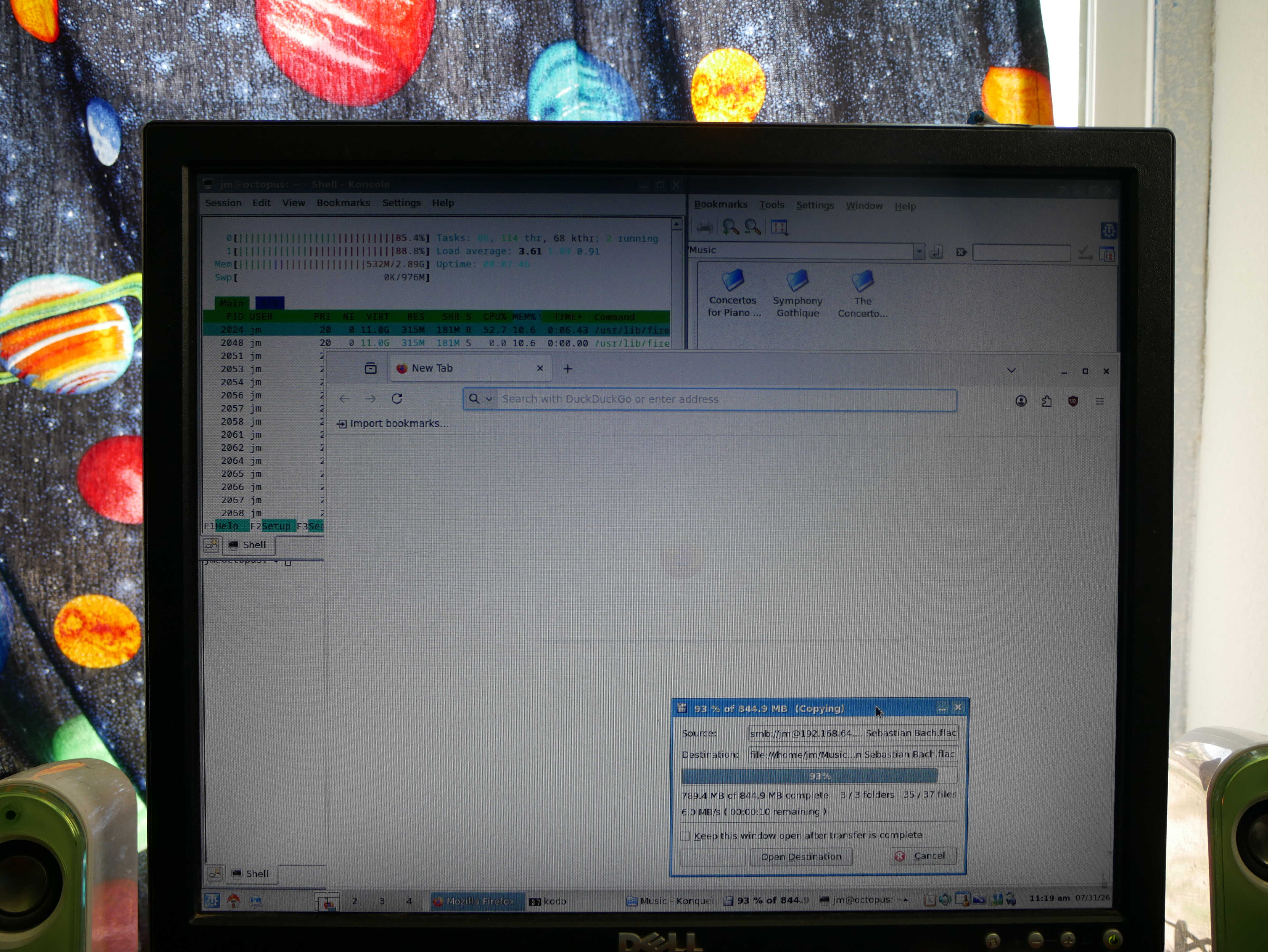
TDE with various applications open all at the same time. Look at how much RAM it's using.
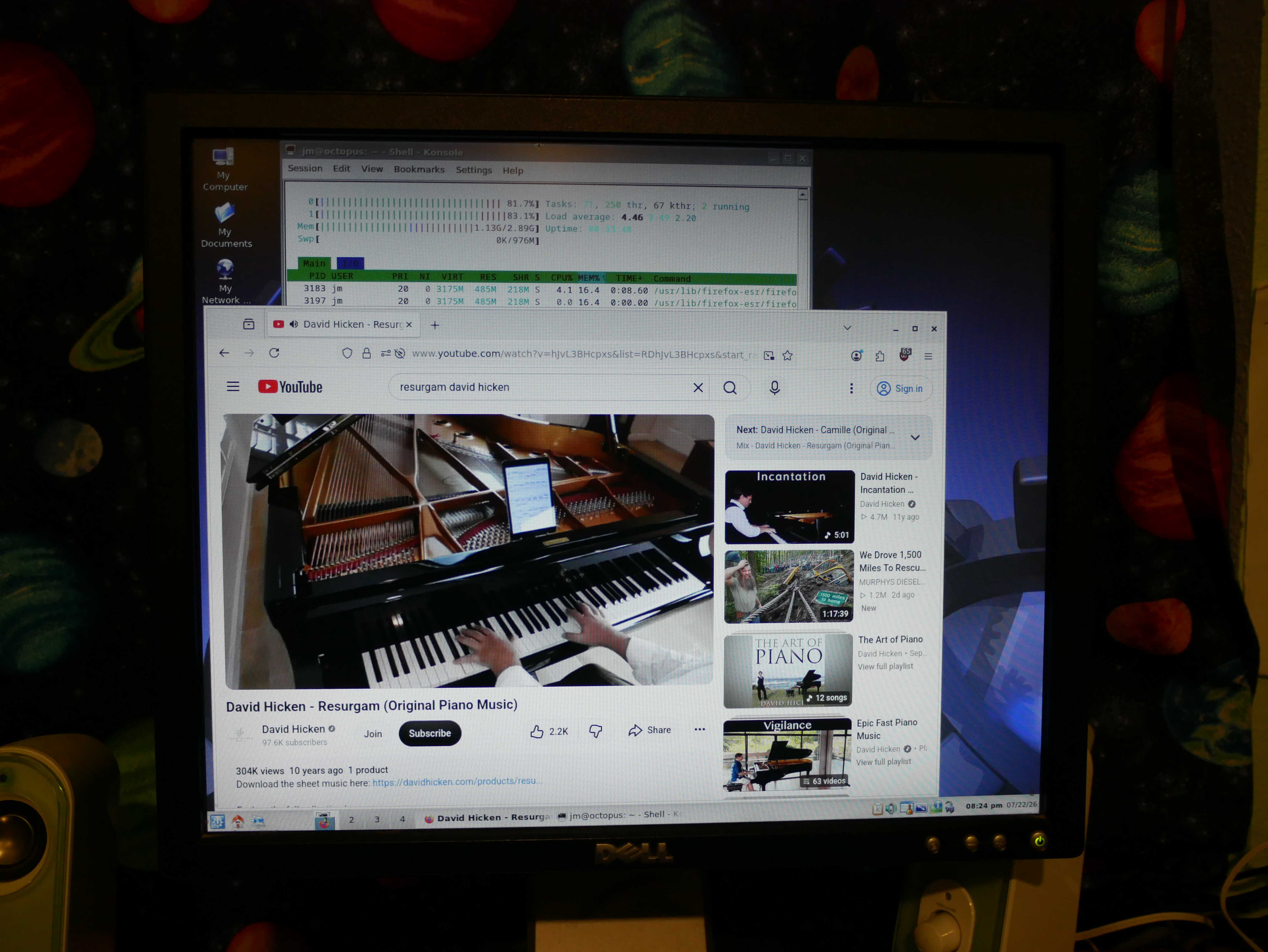
TDE with YouTube in Firefox. 360p works fine on this machine.
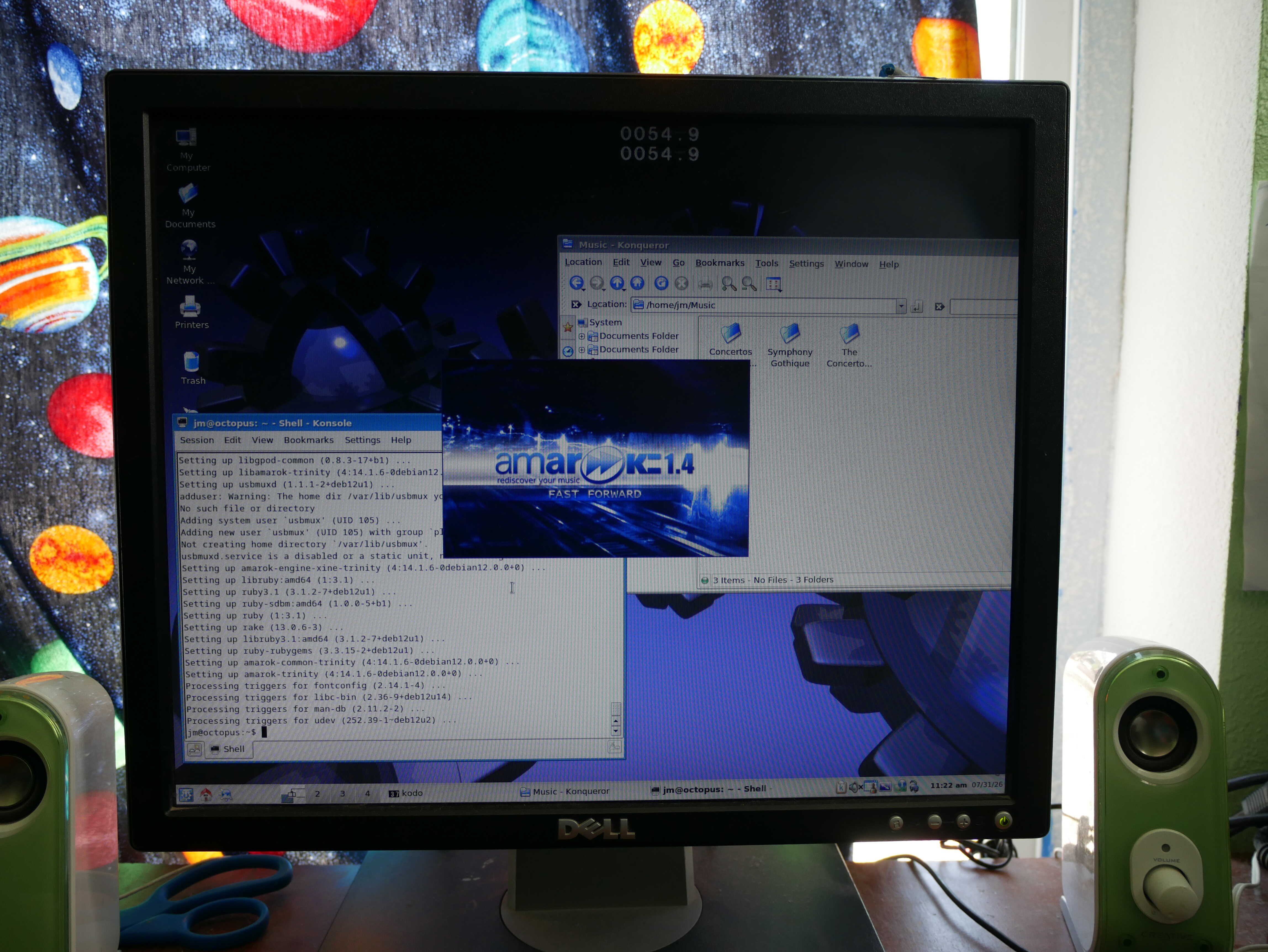
TDE with Amarok launching. It's an old version too!
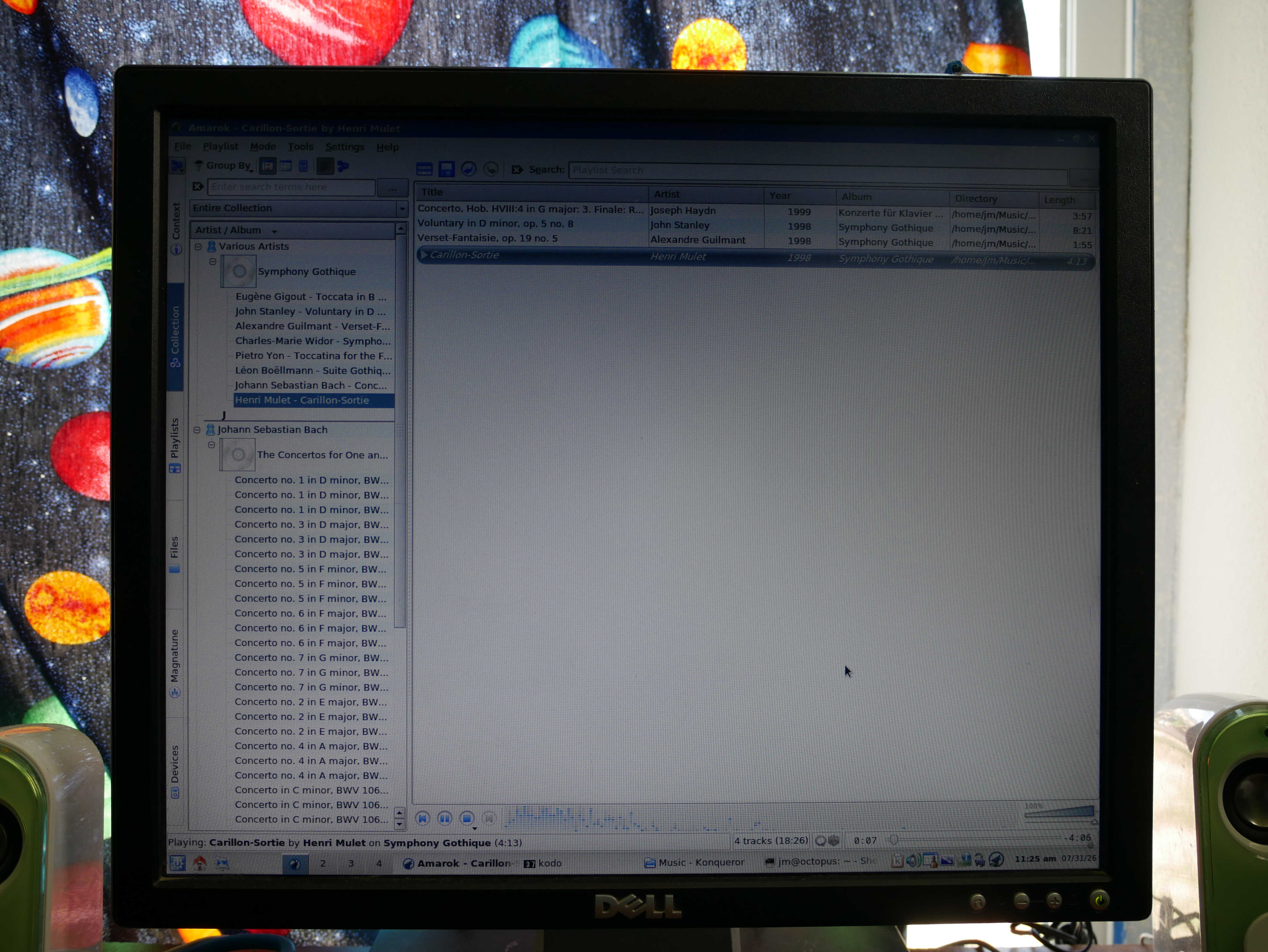
Amarok 1.4.
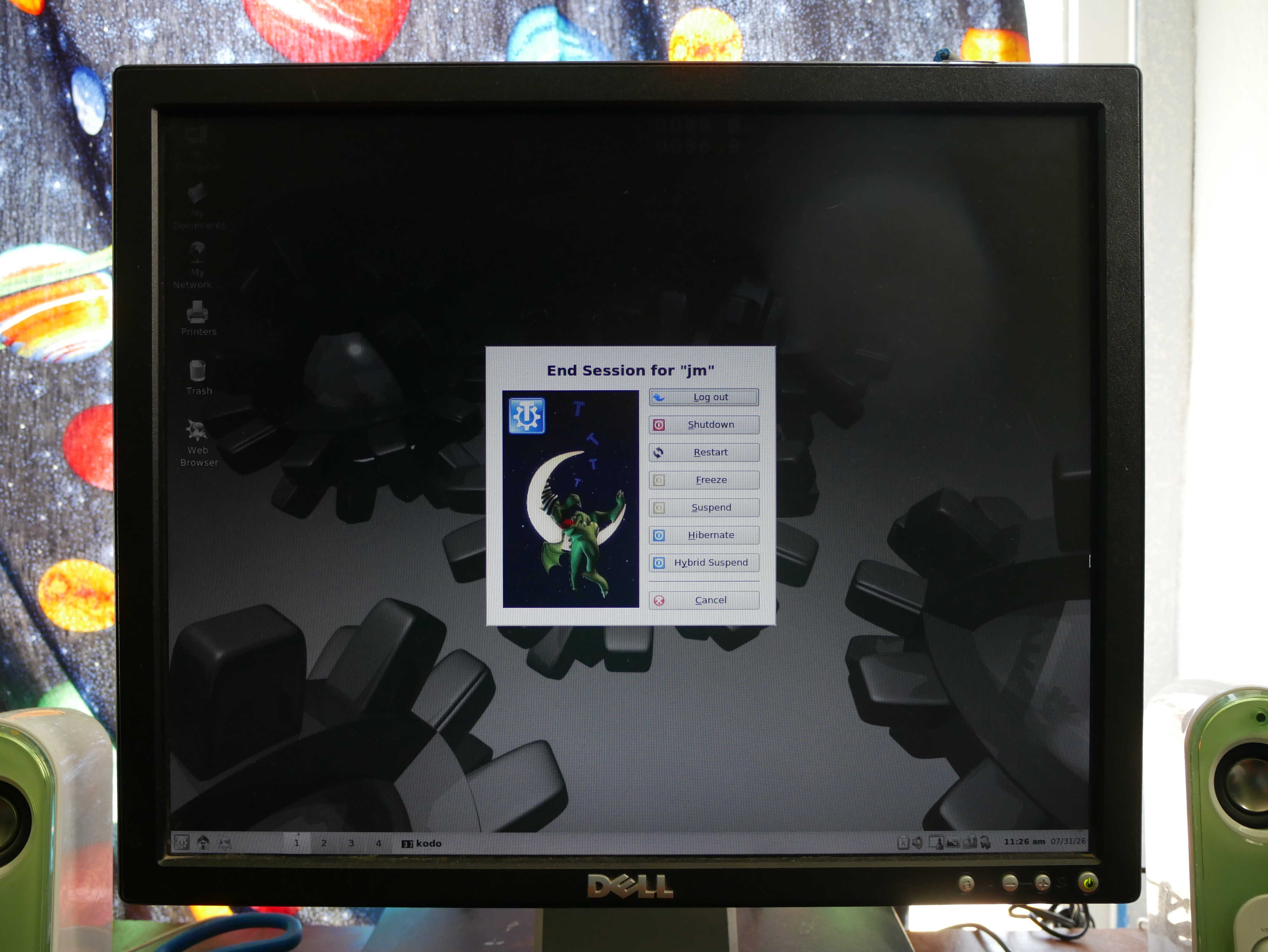
TDE logoff screen. Konqi is conked out.
Chickens!
Agathae is no longer broody. She looks much healthier. I am quite happy she isn’t broody. It also means she’ll be less aggressive. This all works out in my favor.
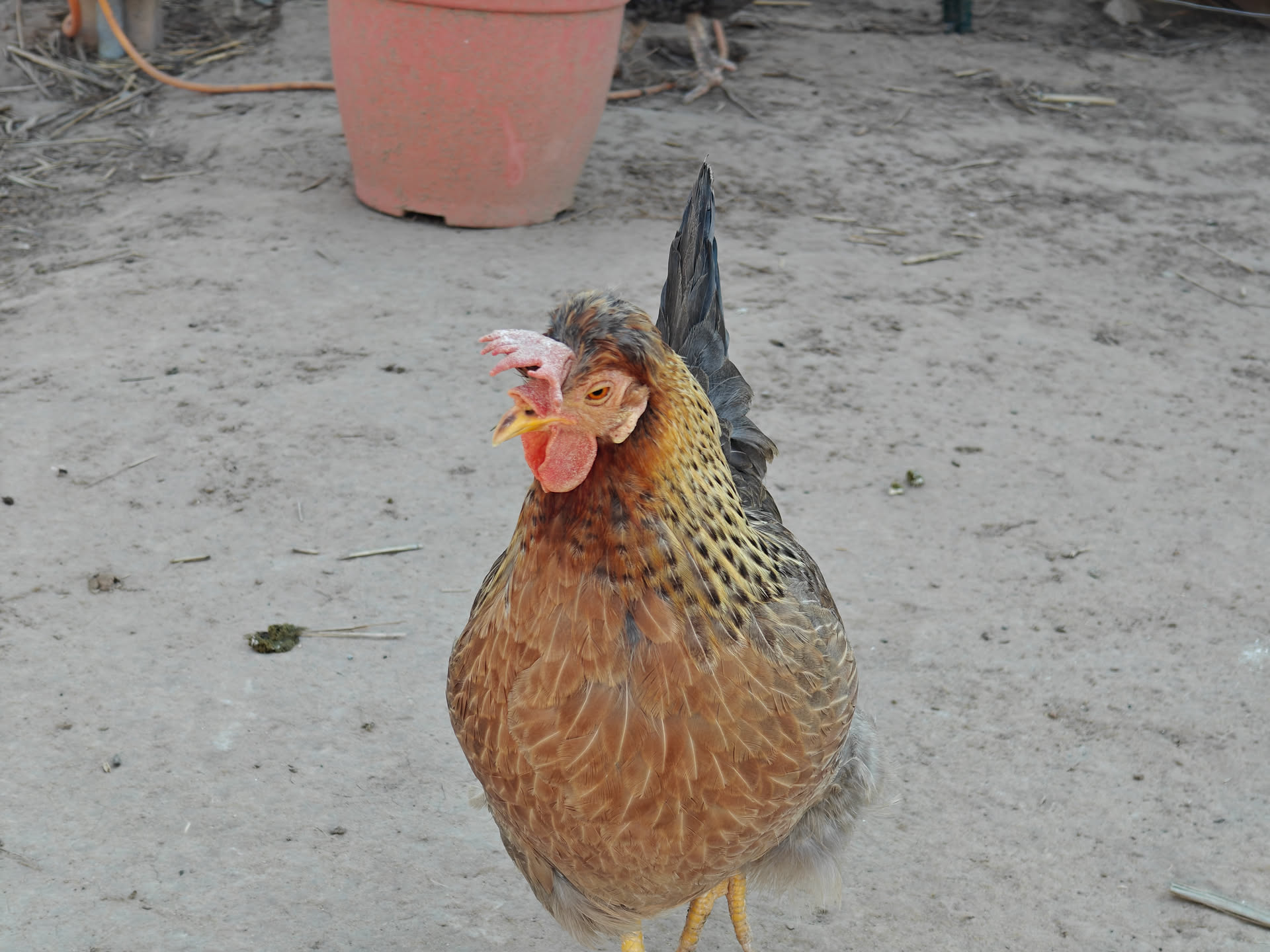
Agathae. She looks less beat up due to not burning energy on being broody.
Thanks for reading this post.