November 20th, 2026
Tablets: Nura Linux and the Lenovo Chromebook Duet 3.
A tablet one can truly own.
No Perfect Tablet.
For years, many years, I have sought after the perfect tablet. Every tablet has its caveats. Every device does. Especially on what I want. The iPad is locked down. Android tablets are better, but won’t run what I need. Atom-based Windows tablets were fun, but not for any serious stuff. Surfaces with Windows were decent, and slap Linux on them and you’ve got a Linux tablet, with the massive caveat of battery life and heat output (Surface Pro 2). Or the PineTab 2, which has the even worse caveat of low performance. No tablet I tried did what I wanted: the battery life of an iPad, as well as the size, with the functionality of my laptop. For such an odd use case, it seemed as if there was no perfect tablet.
Solutions.
The Linux tablet continued to haunt me. I’ve even been asked if there was a good tablet with Linux to replace an iPad. I replied no just about every time someone asked about Linux on a tablet.
One day, out of curiosity, I took a look at the “detachables” section of the Nura Linux (PostmarketOS) wiki. There was one that stood out to me: The Lenovo Chromebook Duet 3. It looked like it was fairly well supported. And, on some additional research, it looked like it would be performant enough for my needs. I ended up taking a brief look at ebay for one. For the 8GBRAM/128GBSSD model, sellers wanted $170 or so for them. I did not want to spend that kind of money on an experiment. A couple weeks later, one for only $50 turned up. It had a catch: the screen was damaged, and develops lines on it. I went ahead and bought it.
The thing arrived in scamazon mailers, with the original box contained within. It also smelled strongly of some kind of air freshener. Yuck. I ended up leaving the fabric bits outside to bake the smell off. I was pleasantly surprised when the tablet turned on with no lines… and then the lines appeared. I set the Chromebook up with my Google account (more yuck) and then gave it a go. I discovered that the lines were an odd issue. They would show up on certain backgrounds, but so long as there was enough variation, they would stay away. Not only that, in a brief test of its media playback capabilities, the lines disappeared. Perfect.
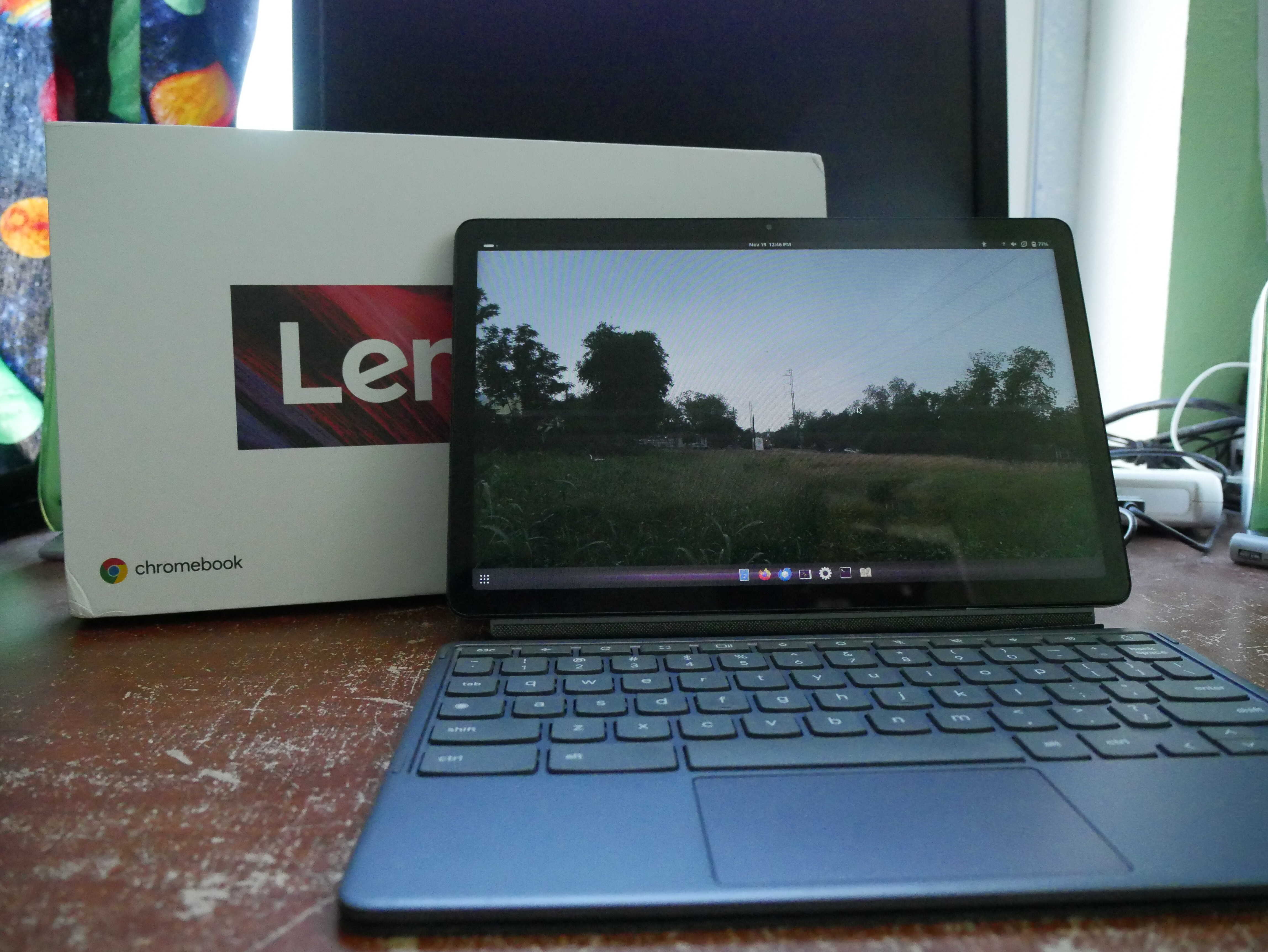
The Chromebook by its packaging.
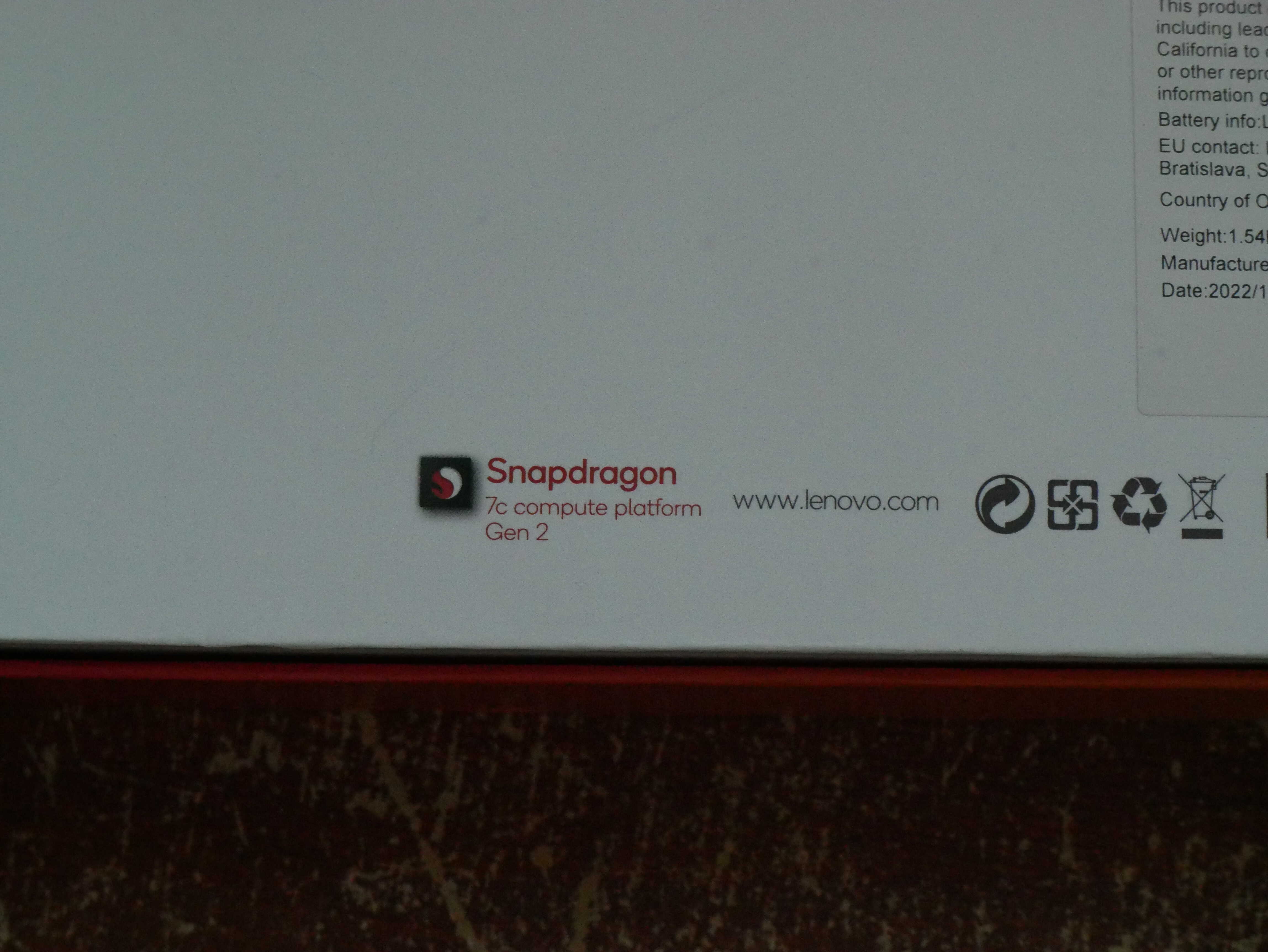
And a reminder as to one of this thing's selling points: the Qualcomm Snapdragon 7c Gen 2 SoC Thing.
Linux Time!
ChromeOS was fun and all, but I wanted to do what I bought that tablet to do: see if my dreams had come true after all. I put the Chromebook into its developer mode and all that fun stuff, flashed my USB with Nura for it, and went to go install it. My first shock was realizing I had to use pmbootstrap to install. Fairly simple process if you follow the prompts. It was a bit confusing, and keep in mind you have to install the Google Trogdor port. I initially went for KDE, but switched to GNOME (more on that later). Installation took about an hour or so, and I did have to figure out how to rotate the DE so it wouldn’t be sideways. Once it was done, I removed my USB and booted into Nura.
There was some additional configuration that had to be done. I disabled its ability to rotate based on the accelerometer, along with the fixes for the touchscreen after sleep mode and the such. Then, I had to get the touchpad to work right. Wherever you touched the touchpad, it would jump to wherever the equivalent of you touching it was on the screen (absolute mode). It was unusable. The fix was on the page for the Duet 5 (its bigger sibling): run the systemctl disable keyd and systemctl stop keyd commands. This broke the ChromeOS keys, but was well worth it.
I also had to configure GNOME. Samba support was fun to enable. I installed support using this command: sudo apk add cifs-utils samba-client gvfs gvfs-smb gvfs-fuse
Restart for it to kick in.
For a one-liner to save you time on installing basic necessities, just run this: sudo apk add cifs-utils samba-client gvfs gvfs-smb gvfs-fuse vlc gnome-tweaks gnome-extensions-app thunderbird gnome-system-monitor gnome-text-editor loupe gthumb gnome-terminal hunspell-en-us libreoffice-lang-en_us htop openssh-client gnome-calculator
I then had my tablet ready for use.
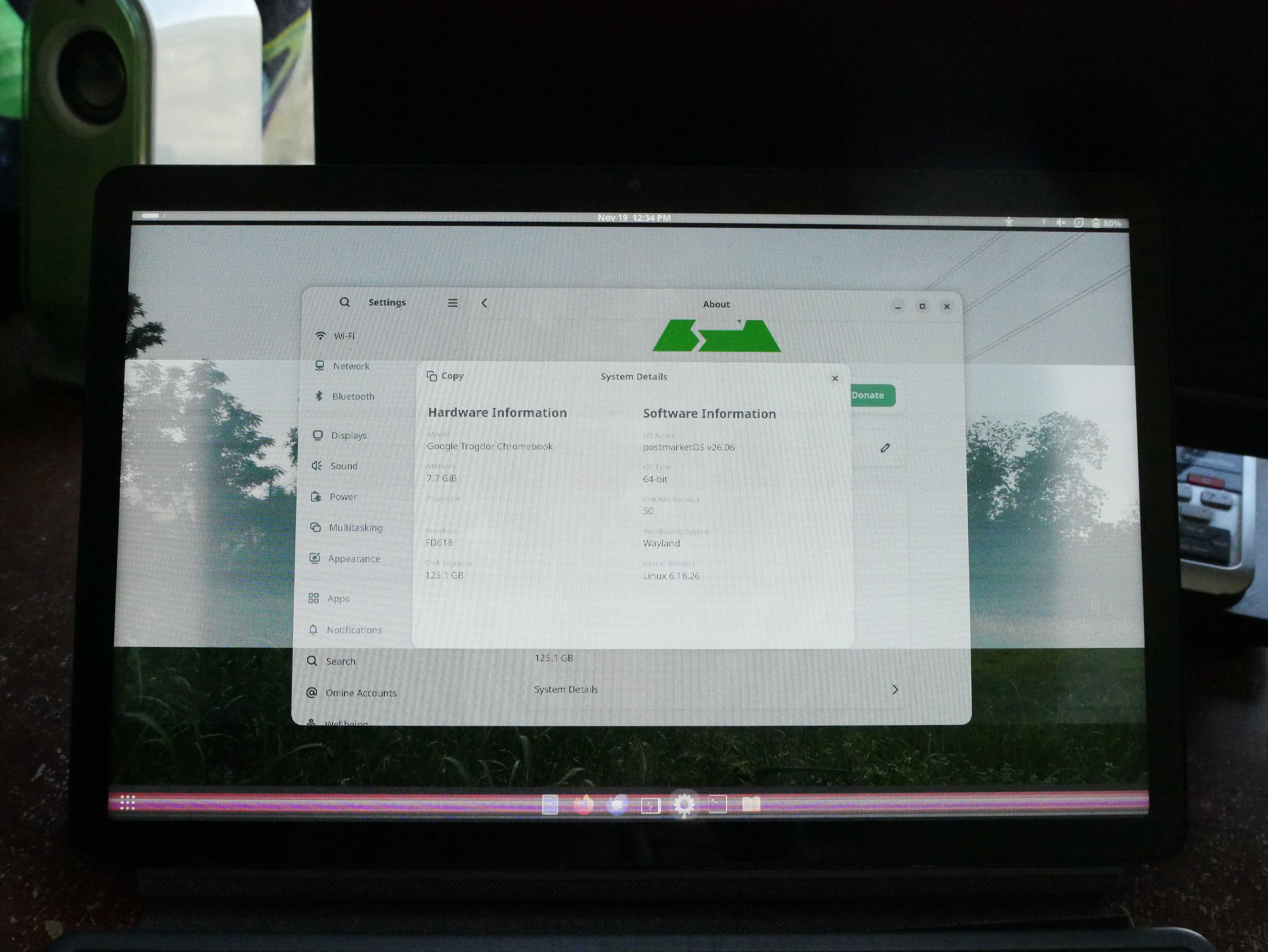
The About screen on the Chromebook. It identifies as a Google Trogdor Chromebook (all 7c Gen 2 Chromebooks are Trogdors).
Dreams Do Come True:
I then got to using it. It was amazing. My first thing was to see just how well video was on Linux. The PineTab 2 struggled with it, but this thing ripped through it, on YouTube’s 1080p60 mode, with the AV1 codec. Offline media was just fine as well. It suits that purpose very well. And the lines issue really didn’t seem to be an issue for it whilst playing most videos. Not only that, the display is much more suited to videos than the iPad. It is in a 16:10-ish aspect ration, whereas the iPad is in a 4:3 ratio. Despite only being slightly bigger, the viewable content is FAR larger. I really enjoyed the video experience on it. It seemed like it would be perfect.
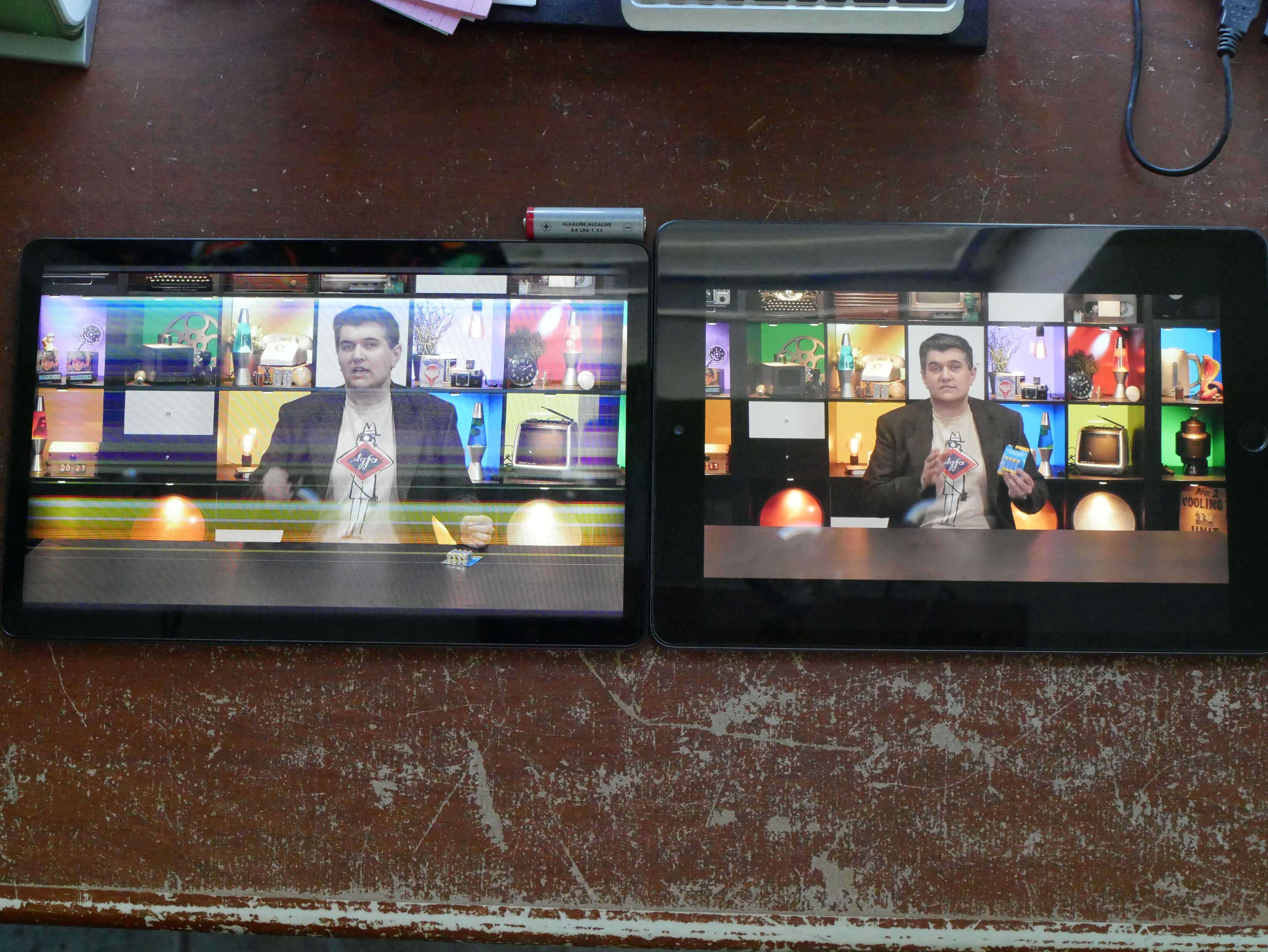
Oh, yes. Look at them alongside each other. The iPad's colors are better, but you can't deny that the screen of the Chromebook is better utilized. Also, notice the lines on the Chromebook. It doesn't like some parts of the Technology Connections set because it's static.
Documents were fine on it. I wrote a bit of a document using the built-in keyboard. It was fine, but I didn’t finish that one. I plugged it into my USB-C DisplayPort Alt Mode laptop dock, and it was even better. I could use it as a portable PC without the compromise of dragging my precious laptop everywhere. LibreOffice did just dandy on it.
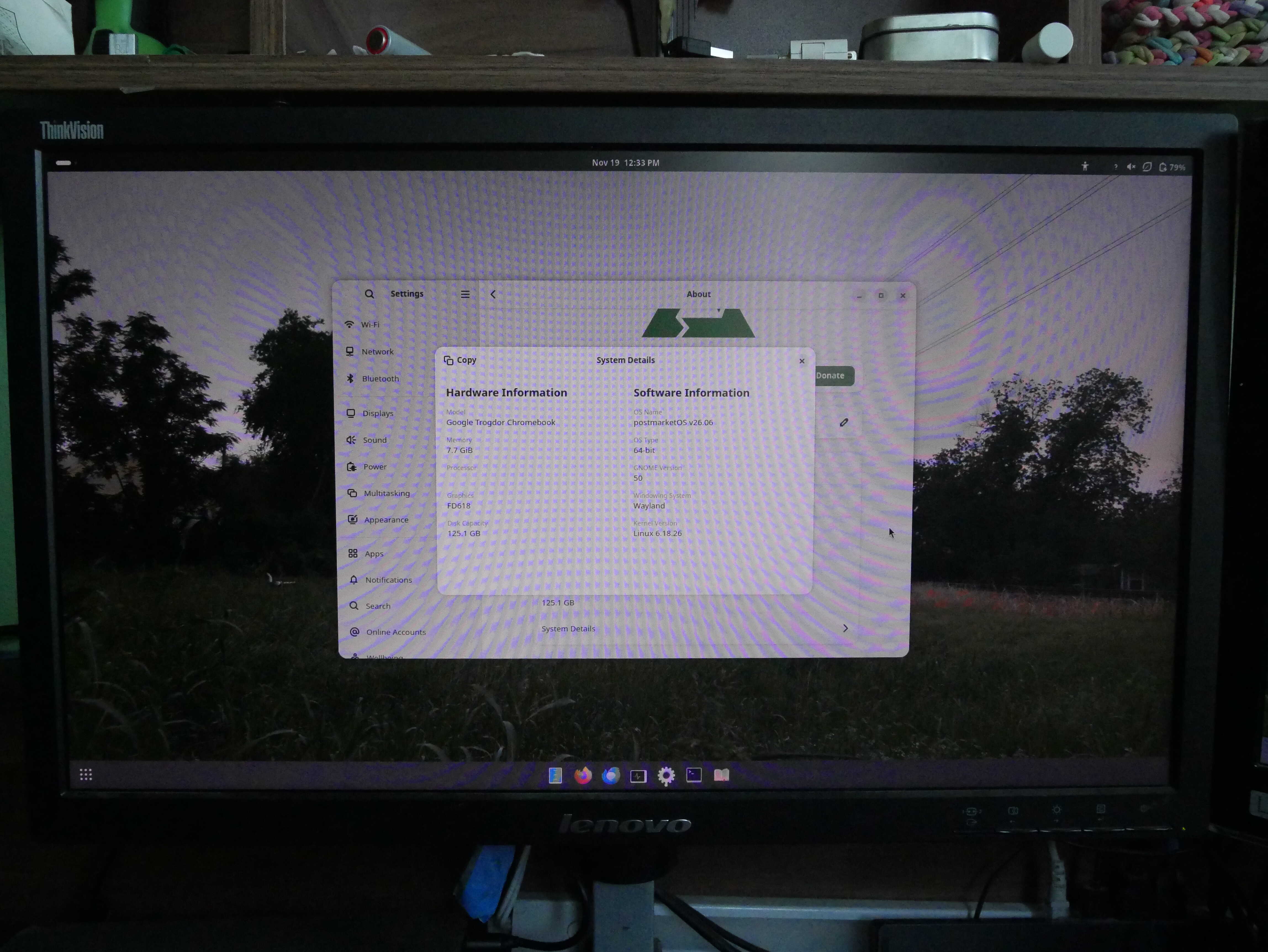
The Chromebook on an external screen. Not a document, but an about page.
And, of course, the only task I ever made my iPad do: ebooks. I installed the Readest ebook reader, and it was fine, save for the glaring issue of the lines appearing. On a whim, I set the text background to gray instead of white, and the lines ran away. It was simply perfect. I read at least three ebooks on the thing. The Chromebook managed to put the iPad out of a job.
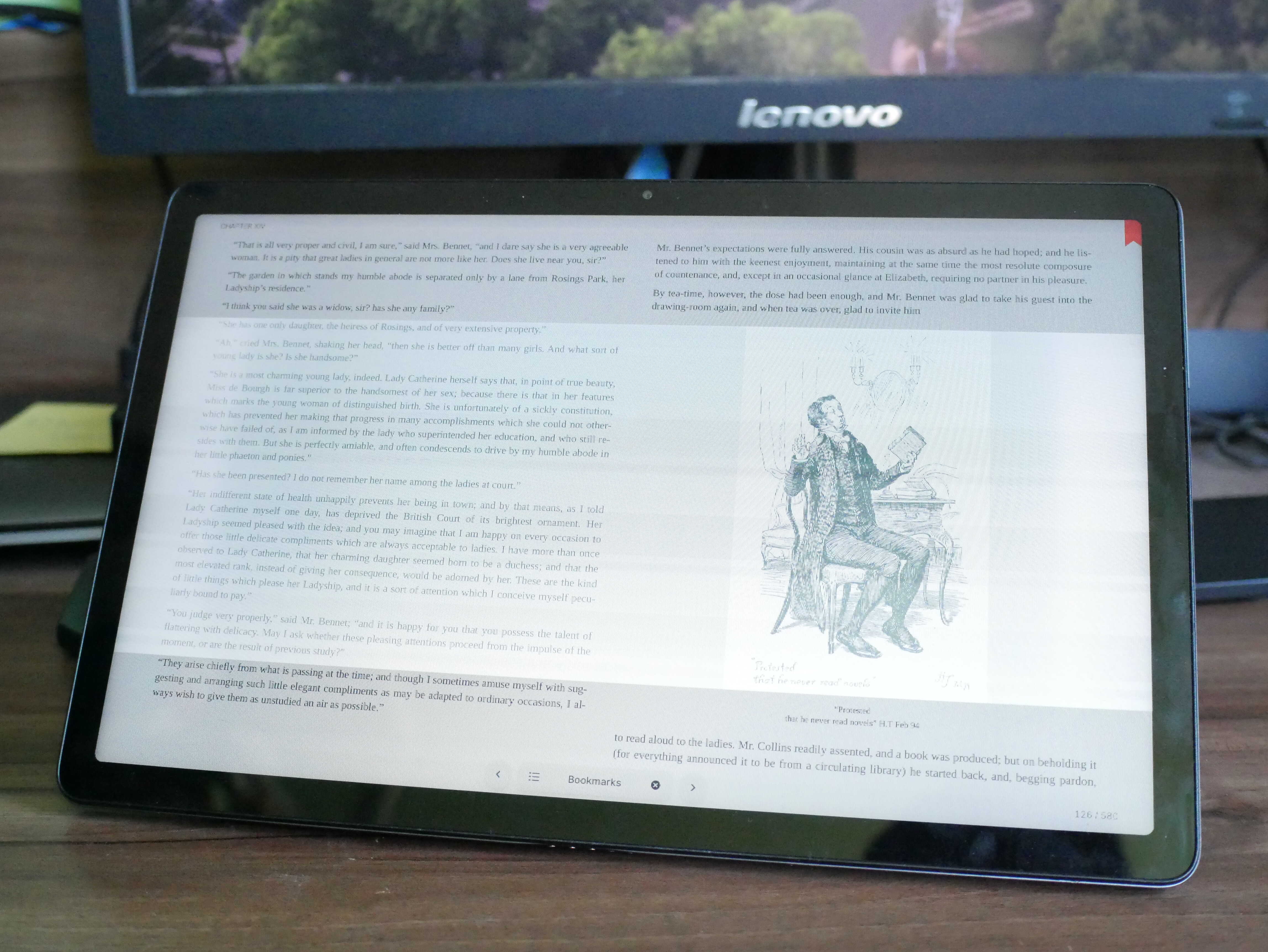
An ebook. The white background on the image is causing the lines to appear.
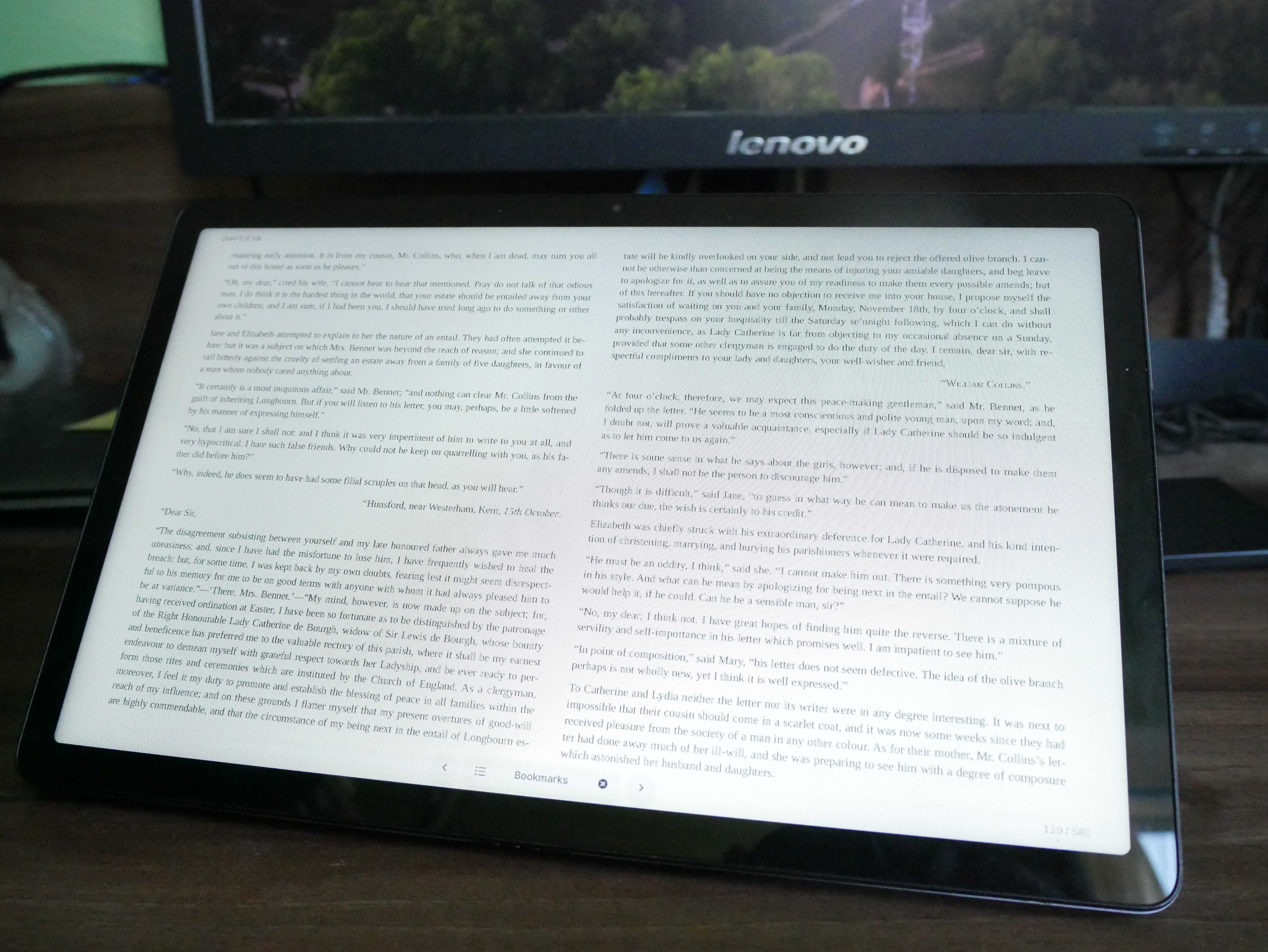
The lines are gone!
Battery life is solid, at least for me. On video playback, it goes down about 30% or so after an hour and a half or so of 1080p30 AV1 playback via MPV/Cine. The thing can get about 4 hours or so before it wants to be plugged in. And it only goes down about (I believe less than) 5% per hour of ebook reading on it. Sleep mode does not work as of the latest Nura Linux release (26.06), so beware of that. I turn it off when I’m not using it.
Touchscreen-wise, it’s a bit clunky, but absolutely worth the trade off. To get the keyboard to show up in almost any instance, you have to swipe up from the bottom of the screen. GNOME also has issues with the control center in the top-right corner, but some tapping around randomly and then trying again will eventually get it to work. If your app is in full-screen, to get to the Activities menu, you have to swipe from the bottom with three fingers or exit full screen. If you want to switch workspaces, swipe from the left or right corner with three finger. Every so often, you’ll run into something that doesn’t like touch as well (highlighting text). But otherwise, it’s been amazing. Touch support has come a long way.
In terms of touch-friendly apps, the apps I need to work with touch are the web browser, video player, and file manager. Firefox and Nautilus (Files) work well with touch, and I haven’t had too many issues with either. Media players were odd. VLC didn’t play 1080p60 AV1 files well. Nay, no Gstreamer-based player did. I settled on Cine (from Flatpak), which uses MPV as its backend. It’s fairly easy to use on touch, though a bit clunky, but does 1080p60 AV1 just fine and meets my needs. Most other apps (text editors and the such) I use with a keyboard and trackpad, and touch-friendlyness isn’t top priority.
EDIT TO ADD: I was uploading this and remembered somtehing else I did to GNOME. For a taskbar, you will need Dash-to-Dock (HERE). You will have to configure it a bit, but it's worth it. I do not get why GNOME hasn't figured out this basic and simple function. Dash-to-Dock is a must for most users to use GNOME efficiently.
Performance is excellent. I ran the High-Performance Linpack benchmarking, using Jeff Geerling’s script (HERE) for it. The results are on the lower side, though I have a feeling thermal throttling or some kind of "maximum CPU speed" thing is keeping those numbers down.
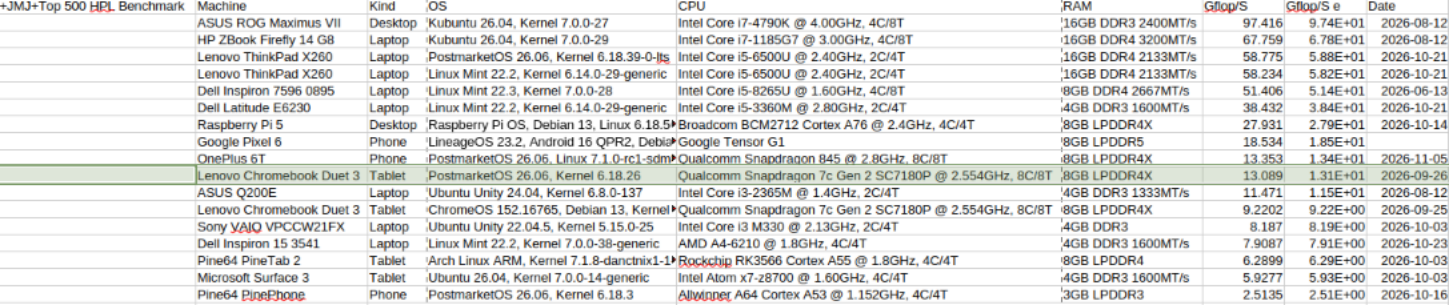
The results for the High Performance Linpack bench.
You will need dependencies to run that script, by the way. I ended up installing a lot. Some of these may not be needed, but you can run this one-line command to install them all: sudo apk add tar git ansible build-base autoconf automake libtool libc6-compat linux-headers gfortran fakeroot
And while I'm at it, Symphony Gothique encode to MP3 thing with fre:ac:
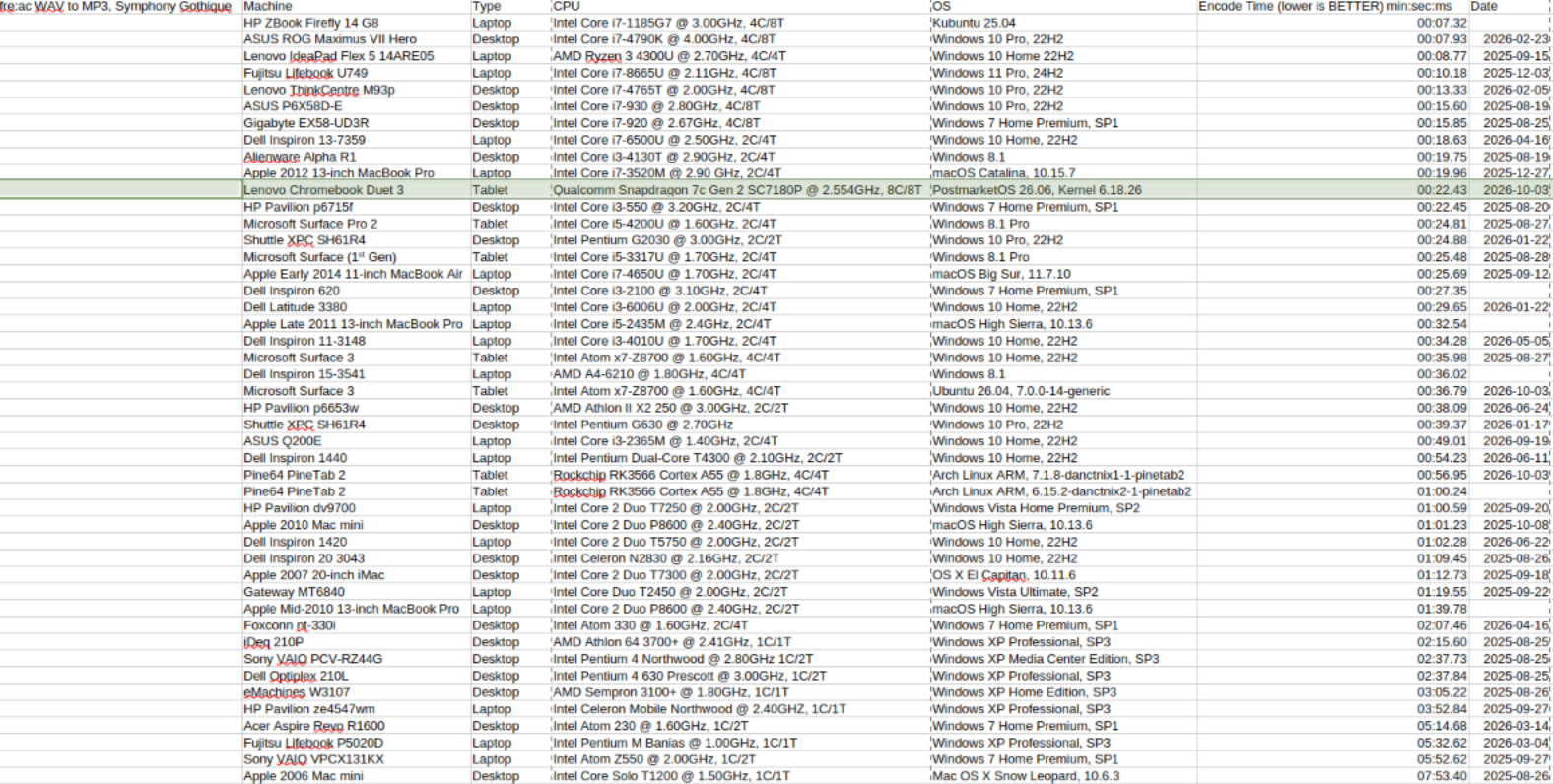
Oh yeah. That's not slow at all.
Caveats.
This device and Nura Linux do have caveats. I recommend you read the Nura Wiki page for it HERE.. Also, keep in mind that Nura is based off of Alpine Linux. It's not your typical distro.
With Nura Linux, the biggest caveat is that it isn’t terribly beginner friendly. Once set up, it’s great. But if you don’t know your way around the terminal or have a hard time using a terminal, Nura Linux might be challenging to set up. Nura has done a great job of bringing Linux to these devices, but as of right now it’s still not “everyone-ready”. Upgrades can also break things, so keep that in mind.
The second is that by default, not all of the patches are applied. I presume these may be undone if you upgrade to a newer version, but I am not sure. The touchscreen, stylus, and accelerometer do not work right out of the box (you can use the touchscreen but sleep mode might break it), and as such you have to patch it using the instructions on the Nura wiki. The touchpad is also broken (quite badly) out of the box thanks to keyd, which Nura uses for binding some of the ChromeOS keys on the keyboard to their proper function. You will lose some of those by disabling keyd, but it’s worth it. Simply run “sudo systemctl stop keyd”, and “sudo systemctl disable keyd”, restart your tablet, and the touchpad should “just work” (I mentioned this earlier on). Oh, also, by default it thinks there are headphones plugged in. Just change the system’s output device to “speakers”. It should be in the Settings app on your desktop of choice.
Third, your cameras WILL NOT work. The Nura team have yet to figure out Qualcomm’s lovely gibberish interface for those cameras, and as such they won’t work.
Fourth is one that I wouldn’t really call a caveat, but it’s here since you need to know this: This tablet does NOT use the typical Intel or AMD (x86) CPU found in most (or many, at least) laptops and desktops. This uses a Qualcomm CPU, which uses the ARM architecture. ARM, and x86 are VERY different. ARM is usually found in smartphones and tablets, and in recent years Macs and some Windows laptops. Linux has great ARM support, but any app that doesn’t have a version for ARM won’t work. I have yet to run into any app I needed that doesn’t have an ARM version, save for HandBrake (video encoder).
In terms of non-Nura caveats, there are some with this hardware in general:
The first is build quality. Lenovo did a mostly good job. However, the adhesive holding the keyboard to the fabric coating it is coming loose on mine. The kickstand is also fraying at the edges from use. It’s fabric, so it’s not as durable as metal.
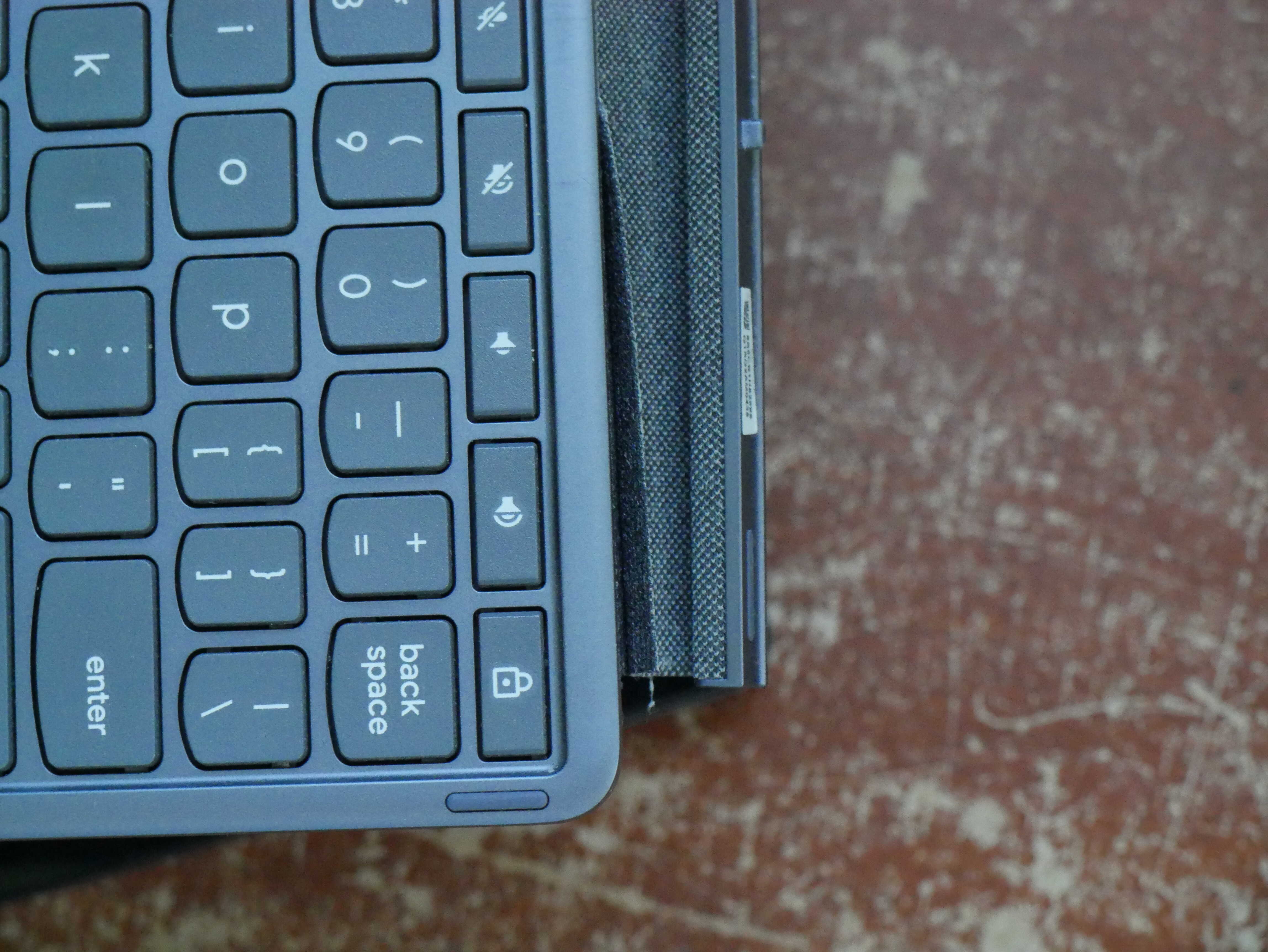
Look at the seperation of the fabric from the board's bottom.
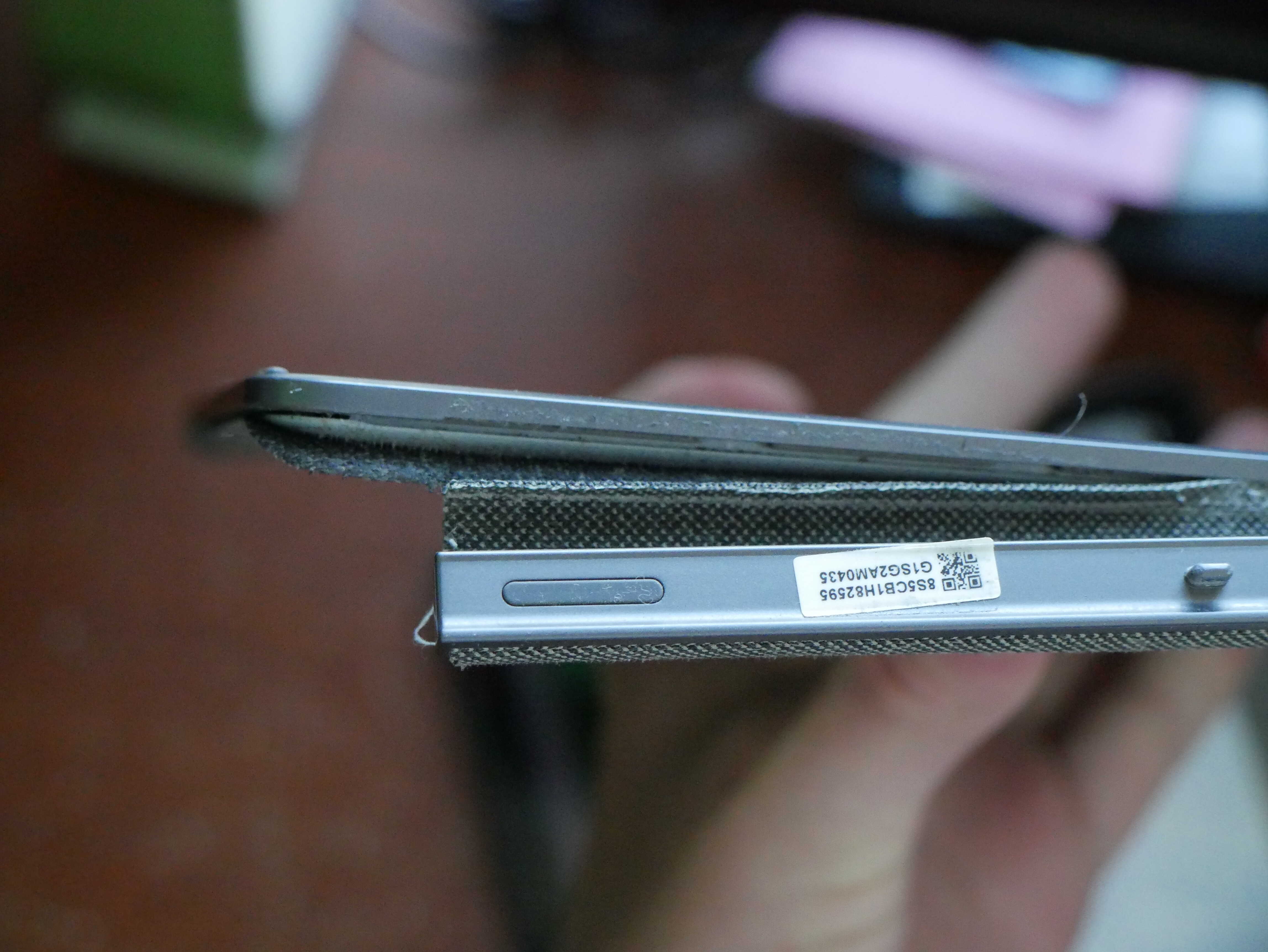
From another angle.
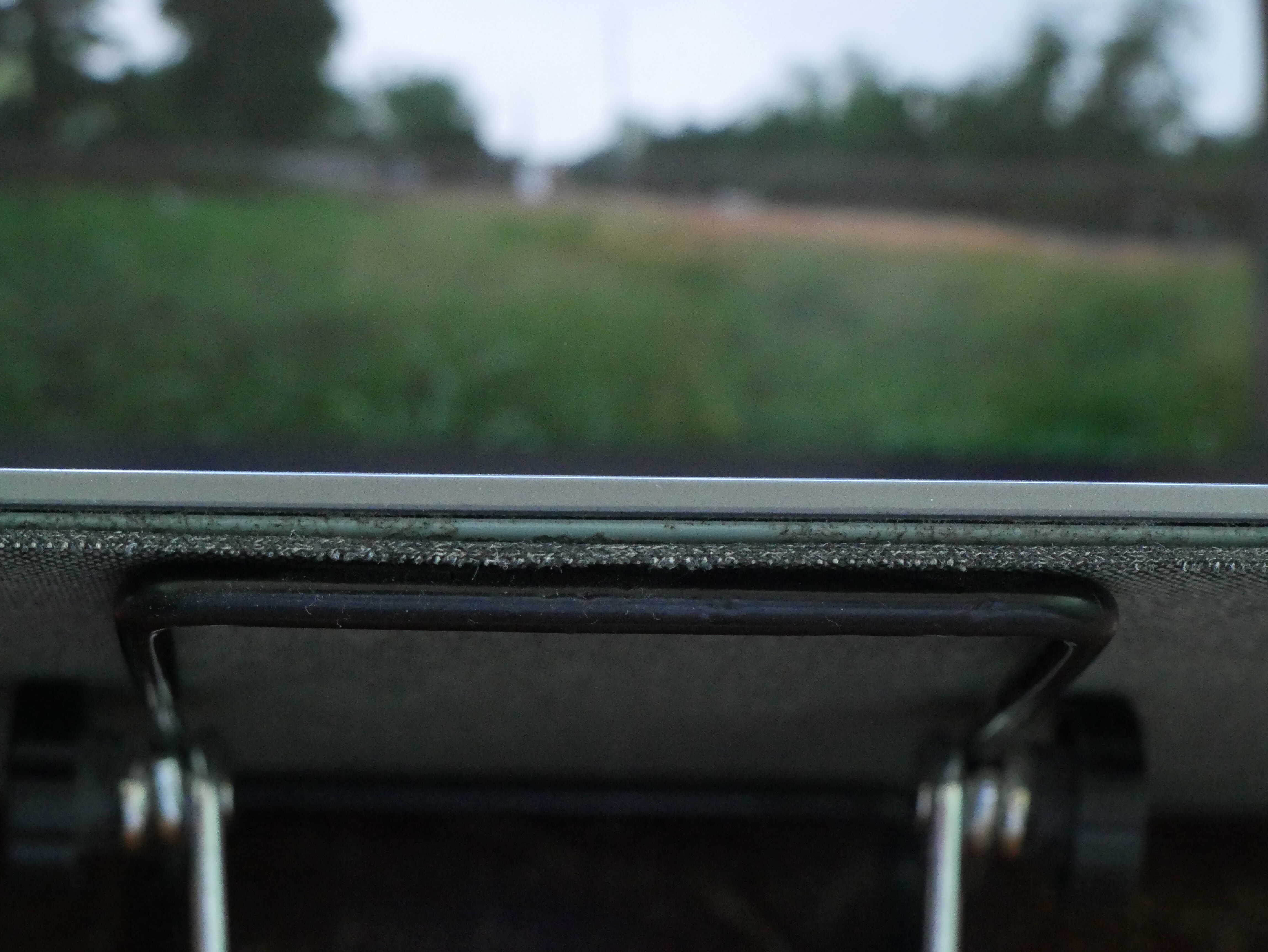
It's even unadhering in the front!
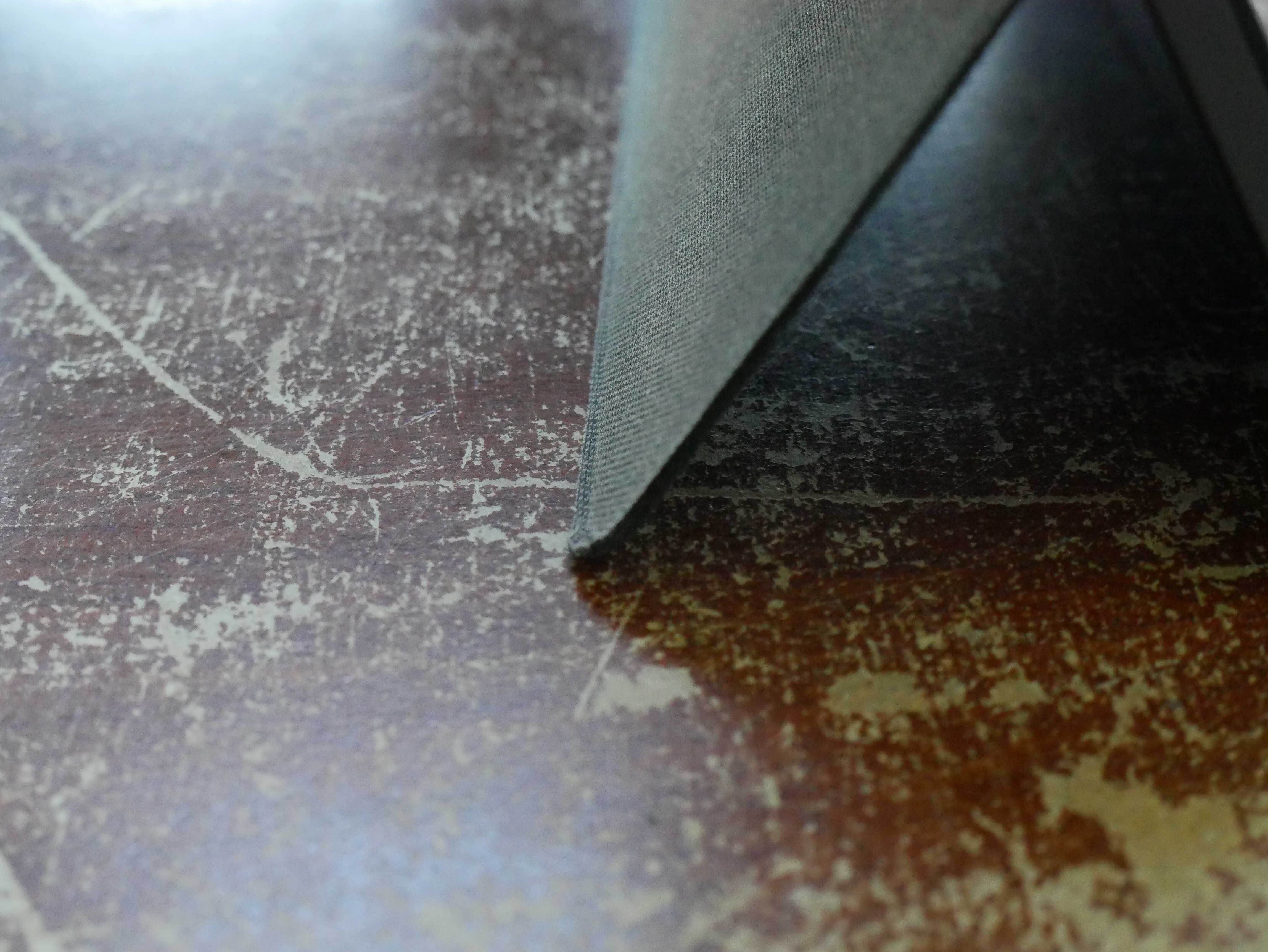
Slight bend on the stand's bottom.
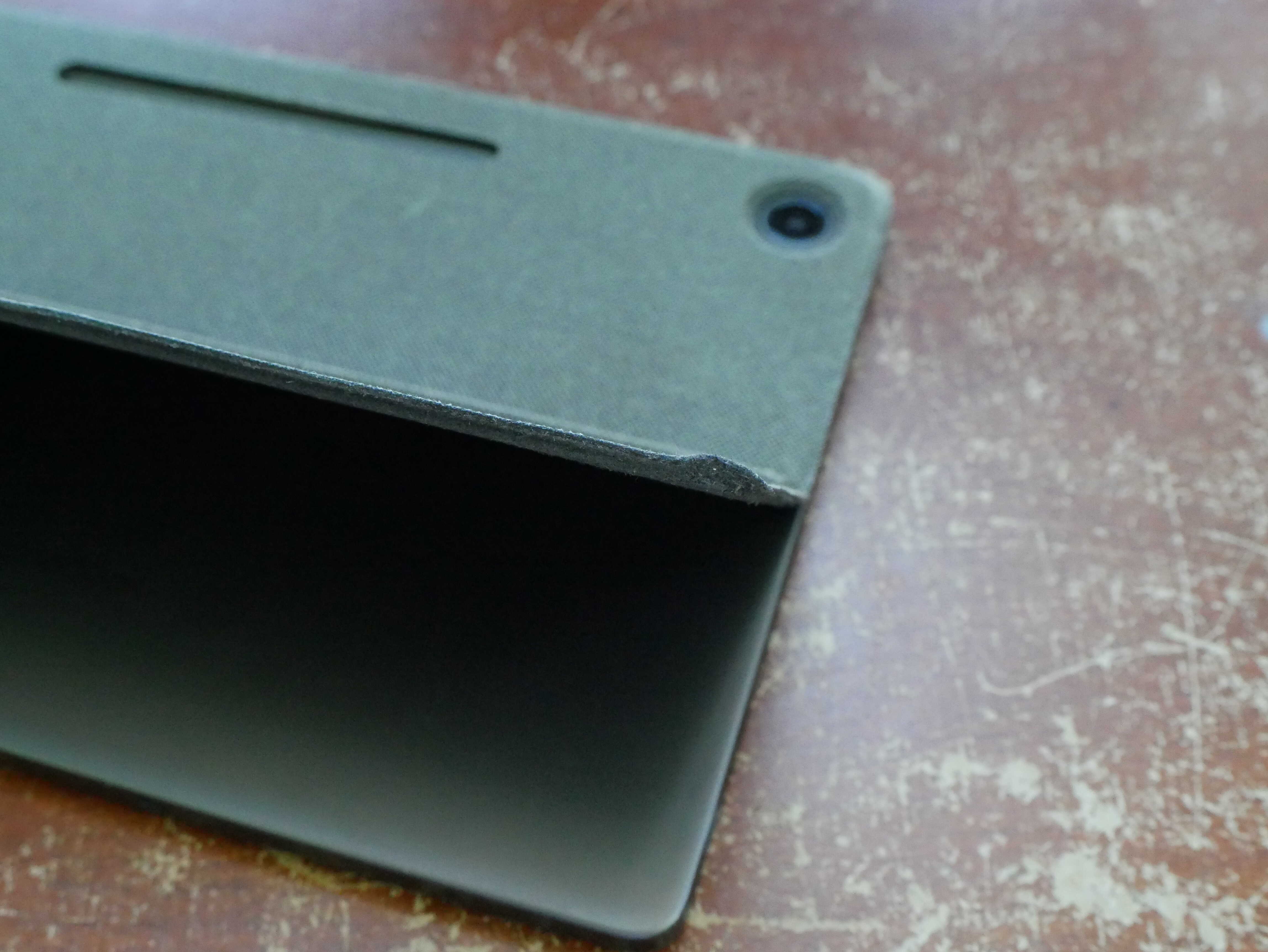
See how it's frayed?
The absolute worst hardware issue this has is the display. These screens are FRAGILE. It is not well-protected, hence why this one was broken. I accidentally slid the thing onto the floor from a chair, and the screen got a couple extra dead pixels on the side that bonked the floor. You’re not supposed to drop it, but the amount of the Duet 5 (13in variant) I see on ebay with dead screens seems to be decent evidence these things have practically nothing to absorb an impact on the edge of the screen. In fact, the screen’s bezel protrudes from the device, enough to the point a drop could harm the screen. TL;DR, display fine but VERY fragile.
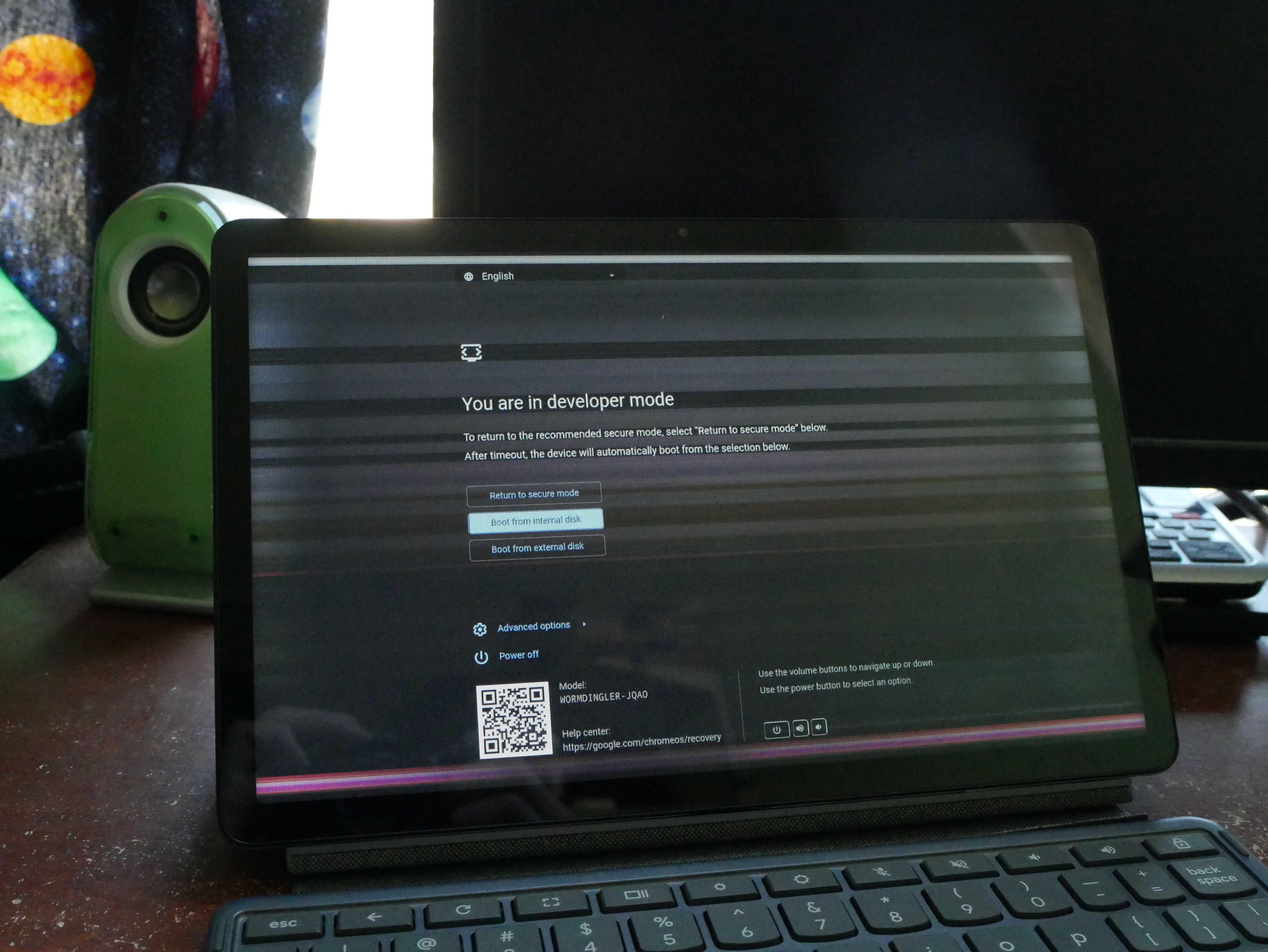
Again, look at those beautiful lines!
Third and least worse for me is the lack of a headphone jack. You must use a headphone dongle or wireless headphones with this device. I use the Kiwi Ears Allegro Mini with my phone, and it’s a perfect fit with the tablet (doesn’t flop around, and gets rid of the fuzz sound I had with my earbuds on the cheap dongles).
Conclusion.
For years I’ve floated in and out of using tablets. Mainly not using them. They never did what I wanted to. They were good for ebooks and that was about it. The systems were locked down, or the battery life was rubbish, or the performance was terrible, or any combination of those. This one, despite coming locked down, can be freed and given a system that does what I want it to: be a laptop and a tablet, all in one small, lightweight, and efficient package. I have, after many years, found what I have sought after: a tablet one truly owns.
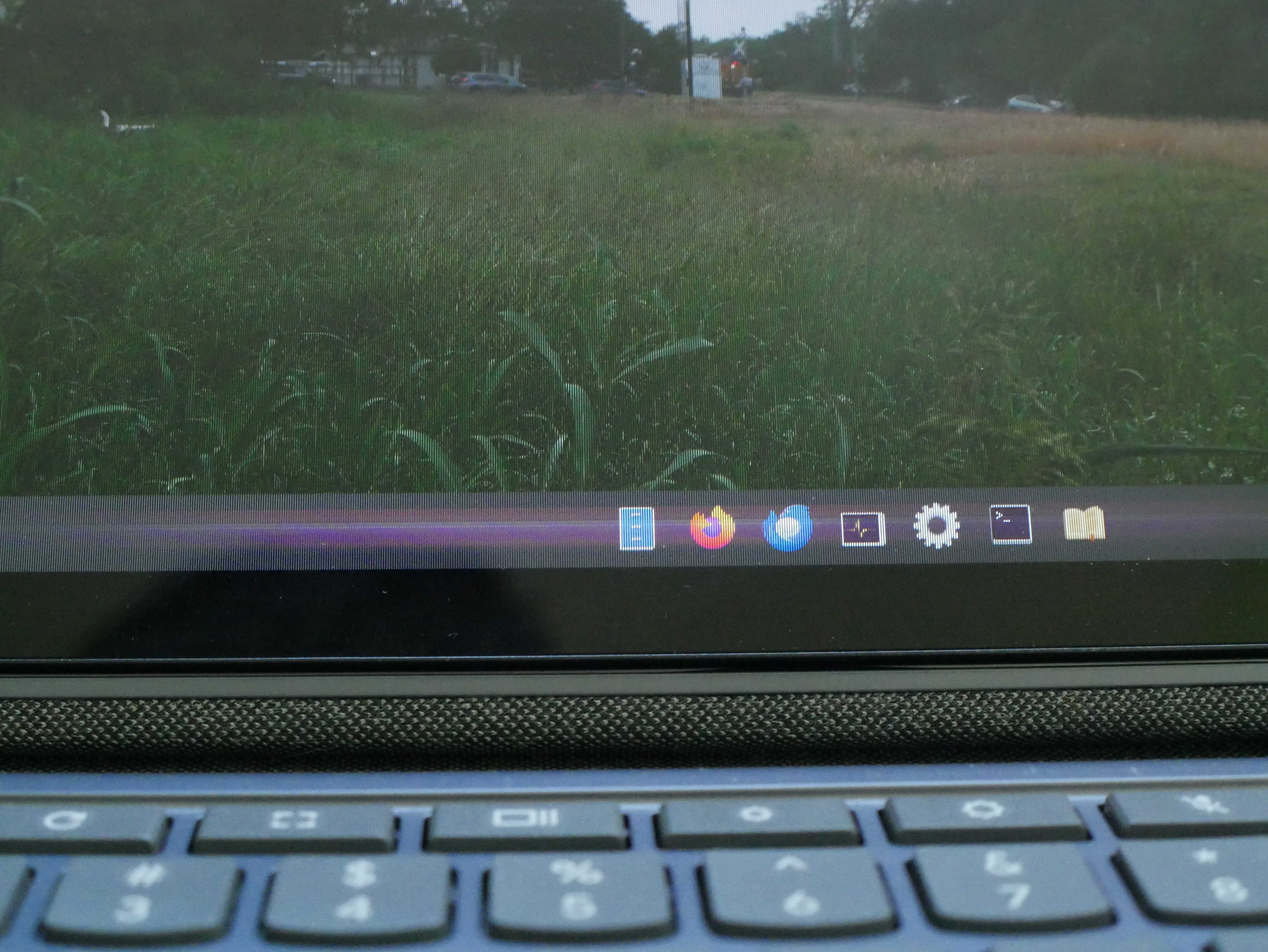
The lines on the bottom of the panel. Still a perfect tablet.
Chickens!
The chickens are mostly fine. Agathae is still molting. Dominica and Felicitas are molting as well, though they are going at a slower rate than Ye Olde Agathae. Temperatures this week got down to around 39F, though they do have a heater to keep them warm in their sleeping quarters. And Gaby is now laying her pretty speckled eggs once more.
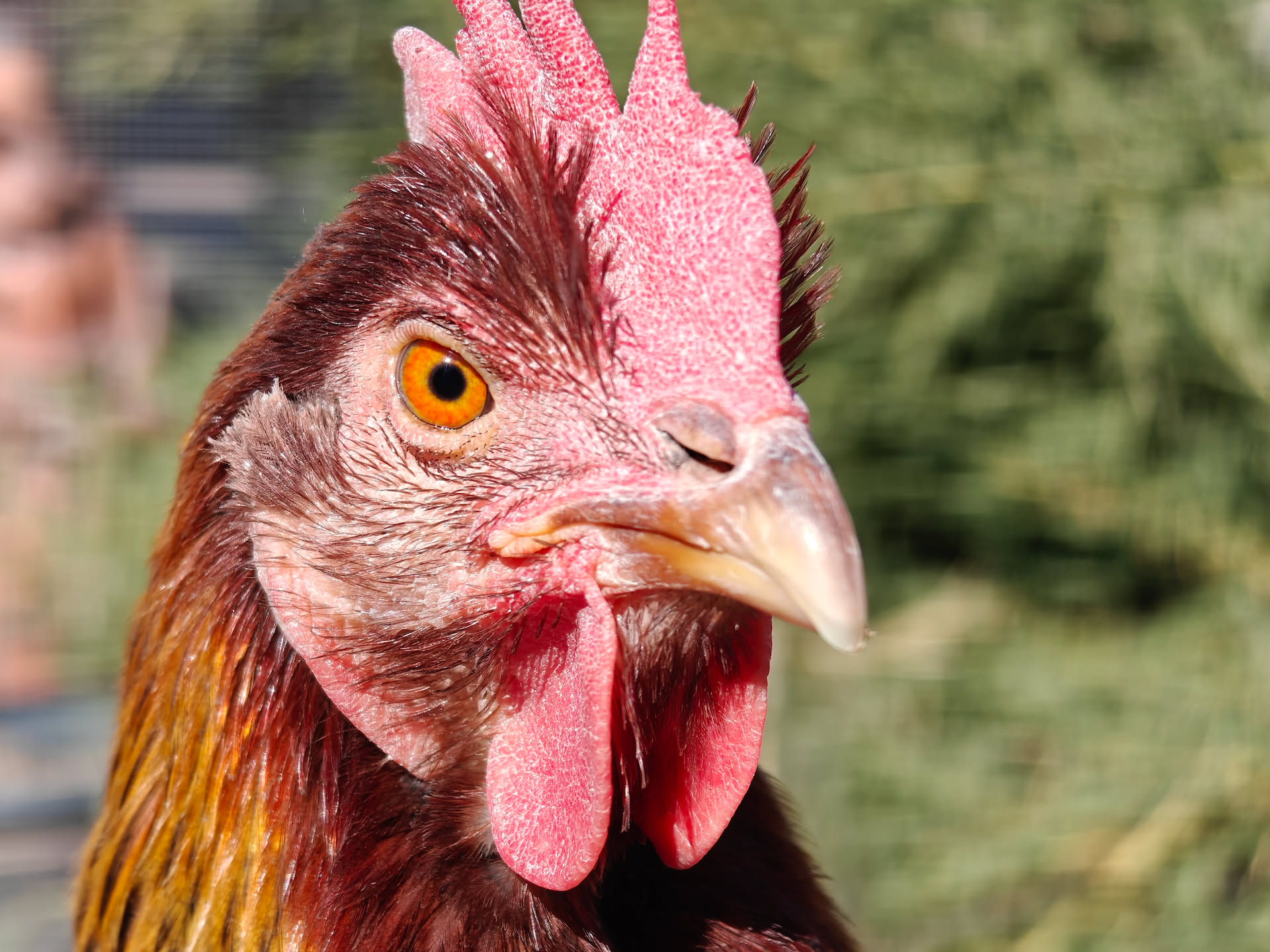
Gaby. Managed to get her to let me take this photograph.
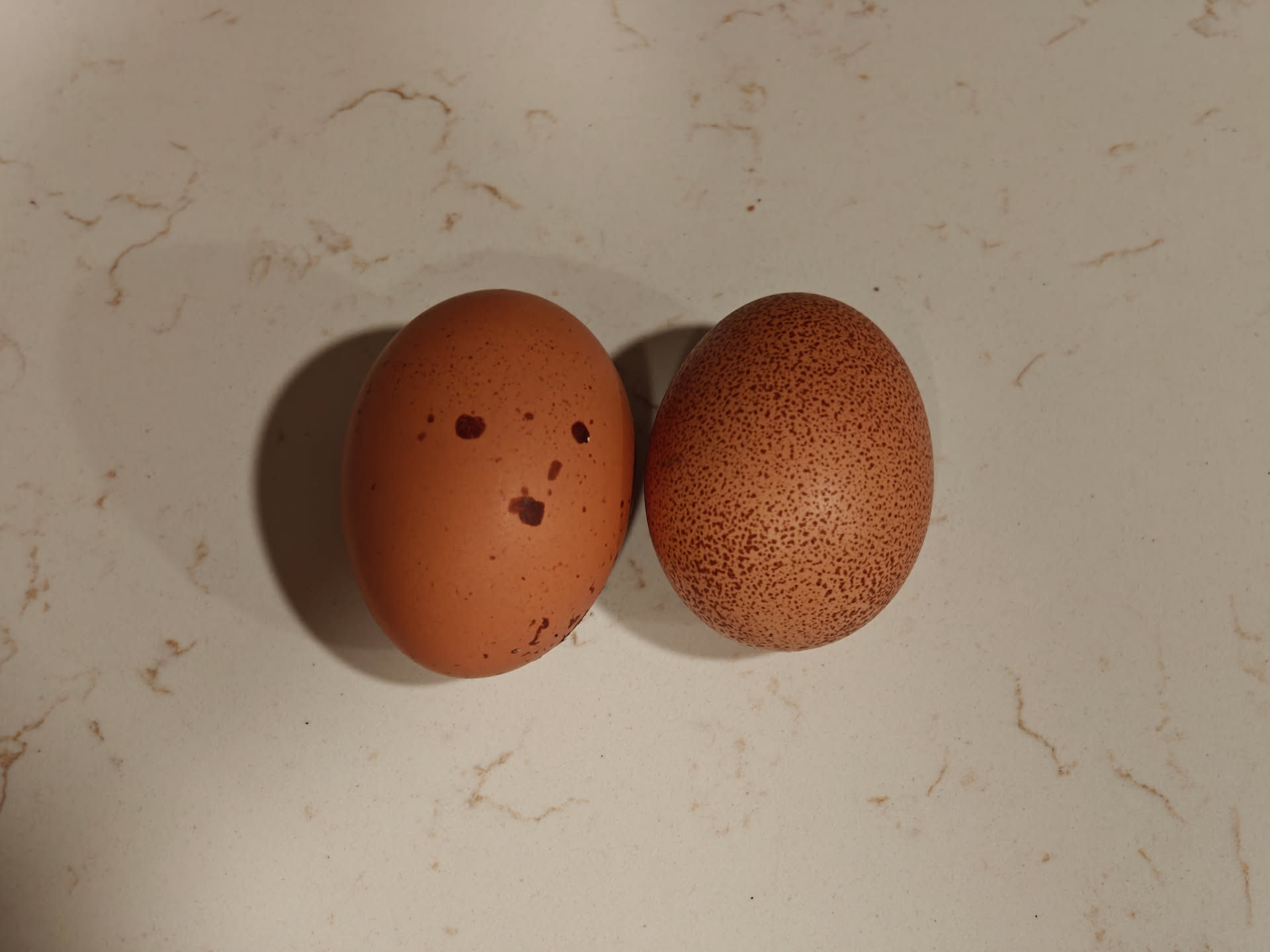
Gaby's eggs.